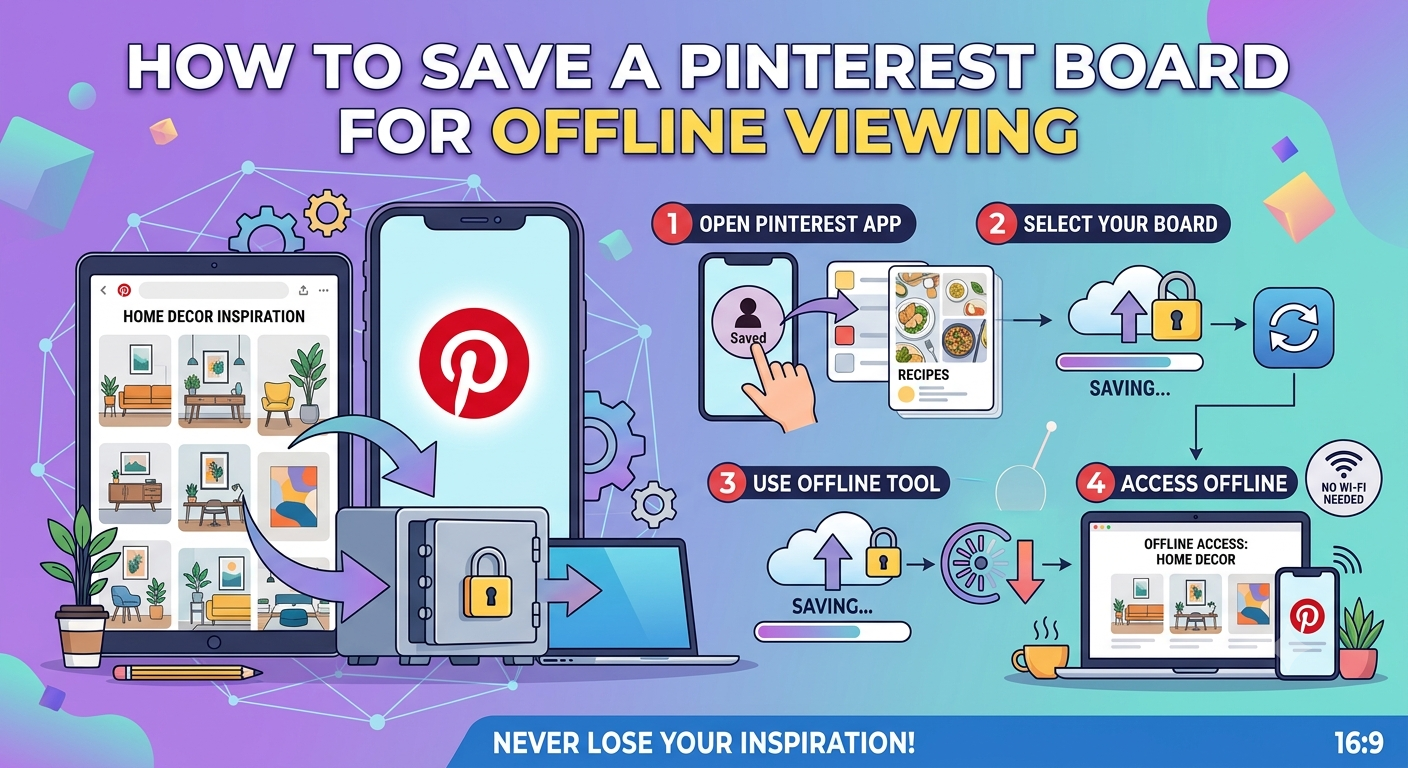
How to Save a Pinterest Board for Offline Viewing
Pinterest doesn't have a single "download this board for offline viewing" button, but you can achieve the same result by downloading individual pin images to your device one at a time, or by using Pinterest's own Data Download tool to export your entire board structure and pin data at once. Both methods stay within Pinterest's Terms of Service and avoid the risks of third-party board-scraping tools.
Why Pinterest Doesn't Offer a Single "Save Board" Button
Pinterest's core function is curating and organizing links back to original content recipes, articles, product pages, and images hosted elsewhere. Because most pins point back to external websites rather than existing solely as native Pinterest content, a single-click "download entire board offline" feature would need to somehow package third-party website content Pinterest doesn't own, which isn't something the platform offers. Instead, Pinterest gives you tools to download the pin images themselves and export your board organization as data, which together cover most practical offline-access needs.
- Best Practices for Backing Up Facebook Memories
- Facebook Save Option Not Showing Up
- Facebook Data Download Tool
- How to Download Your Own Google Photos Album
Downloading Individual Pin Images
- Why Pinterest Doesn't Offer a Single "Save Board" Button
- Downloading Individual Pin Images
- Downloading an Entire Board's Worth of Pins
- Exporting Your Board Structure With Data Download
- Saving Pins to Revisit Within Pinterest (Not Offline)
- Downloading Pin Videos
- What Happens to a Downloaded Pin If the Original Is Deleted
- Saving Pins That Link to Recipes or Articles
- Organizing Downloaded Pins on Your Device
- Using Pinterest on Desktop vs. Mobile for Downloading
- Why Third-Party Board Downloaders Aren't a Safe Shortcut
- Downloading Pins From a Board You Don't Own
- Saving Secret (Private) Boards Offline
- What to Do If a Pin's Download Option Is Missing
- Backing Up an Entire Pinterest Account Before Deleting It
- Using Downloaded Pins for Personal Projects
- Conclusion
- Open the pin you want to save.
- Tap the three-dot menu (mobile) or right-click the image (desktop).
- Select Download image.
- The image saves directly to your device's gallery or downloads folder.
This works for any pin where the image itself is hosted on Pinterest's own servers, which covers the vast majority of pins you'll encounter while browsing.
Downloading an Entire Board's Worth of Pins
Since there's no built-in "download all" for a board, saving every pin in a board individually is the most direct official method:
- Open the board.
- Go through each pin, downloading the image using the steps above.
- For larger boards, working through them in one sitting rather than piecemeal keeps you from losing track of which pins you've already saved.
While this is more manual than a single bulk-download button, it's the only approach that stays fully within Pinterest's own features without introducing the risks that come with third-party board-scraping browser extensions or downloader websites.
Exporting Your Board Structure With Data Download
For a complete record of your boards, pin organization, and account activity rather than just the images Pinterest's Data Download tool is the better tool:
- Go to Settings > Your Data (or Data Download, depending on your account region).
- Request your data export.
- Pinterest compiles an archive, typically delivered within about a day, containing your boards, pins, and account information in a structured format.
This export gives you a record of what you'd pinned, where, and how your boards were organized useful for reconstructing your board structure elsewhere or simply having an independent backup of your curation work, even though it doesn't necessarily include full-resolution copies of every linked image.
- Are Third-Party TikTok Downloader Apps Safe to Use
- How to Download Your Own Google Photos Album
- Comparing Google Photos vs iCloud for Backups
- What Happens to Your Saved Content When You Delete an App
Saving Pins to Revisit Within Pinterest (Not Offline)
If your actual goal is just being able to easily find a pin again rather than a true offline copy, Pinterest's core "Save" function the button used to add a pin to one of your boards in the first place already accomplishes this without any download at all. Organizing pins into well-named boards is often a more practical solution than downloading images individually, unless you specifically need access without an internet connection.
Downloading Pin Videos
Some pins include video content rather than a static image. The same three-dot menu often includes a Download video option on pins with video content, working similarly to image downloads, though availability can depend on whether the original content creator has enabled downloads for that specific video pin.
What Happens to a Downloaded Pin If the Original Is Deleted
Once you've downloaded a pin's image or video to your device, that copy is independent of Pinterest entirely if the original pin is later deleted by its creator, or the board is made private, your downloaded copy remains unaffected, since it's now just a regular file on your device rather than something tied to the live pin.
Saving Pins That Link to Recipes or Articles
Many popular pins recipes especially are really just a preview image linking to a full article or recipe hosted on an external website. Downloading the pin image itself only saves that preview image, not the full recipe or article content behind it. If you want to preserve the actual recipe or article, the more complete approach is opening the linked website and using your browser's own save-page or print-to-PDF feature to capture the full content, rather than assuming the downloaded pin image alone contains everything you'll want later.
Recommended Articles
 PINTEREST
 PINTEREST
 PINTEREST
Organizing Downloaded Pins on Your Device
Since downloading pins individually doesn't preserve Pinterest's board structure automatically, it helps to recreate a similar organization system on your device:
- Create folders in your phone or computer's file system matching your Pinterest board names.
- Save pins directly into the corresponding folder as you download them, rather than dumping everything into one general downloads folder to sort later.
- For boards you download in full, consider a quick text file listing the board name and pin count, so future-you has context if you revisit the folder months later.
Using Pinterest on Desktop vs. Mobile for Downloading
Downloading pins works on both Pinterest's mobile app and its desktop website, with largely the same steps — three-dot menu or right-click, then Download. Desktop can be more efficient for downloading many pins in one sitting, since right-clicking and saving is often faster than the mobile app's menu navigation, particularly if you're working through an entire board's worth of images.
Why Third-Party Board Downloaders Aren't a Safe Shortcut
Browser extensions and websites claiming to bulk-download entire Pinterest boards in one click typically work by scraping Pinterest's site structure in ways that violate Pinterest's Terms of Service, and often request broad browser permissions in the process. Given that Pinterest's own tools already cover both individual pin downloads and full data export, the actual gap these third-party tools fill bulk image downloading in one click isn't worth the account and security risk it introduces, especially for a manual process that, while slower, is fully compliant and doesn't require installing anything unfamiliar.
Downloading Pins From a Board You Don't Own
If you're trying to save pins from someone else's public board rather than your own, the same individual download method applies the three-dot menu or right-click download option works on any public pin regardless of who originally pinned it, provided the underlying image is hosted on Pinterest's own servers rather than an external site that blocks direct image access.
Saving Secret (Private) Boards Offline
Secret boards follow the exact same download process as public boards there's no additional restriction on downloading pins from your own private boards. If you're trying to save pins from someone else's secret board that's been shared with you as a collaborator, the same individual pin-download steps apply, since board privacy settings control who can view the board, not whether downloading is technically possible once you have legitimate access.
What to Do If a Pin's Download Option Is Missing
Occasionally, the Download option won't appear on a specific pin. This is usually because the underlying image is hosted externally rather than directly on Pinterest's servers in these cases, Pinterest is essentially just displaying a preview or thumbnail linking out to the original source, and the actual downloadable file lives on that external website instead. Visiting the linked site directly and saving the image from there (using standard browser right-click-save, assuming the site itself allows it) is the appropriate workaround in this specific situation.
Backing Up an Entire Pinterest Account Before Deleting It
If you're planning to delete your Pinterest account entirely, running the Data Download export beforehand is particularly important, since board organization and pin history become permanently inaccessible once an account is deleted unlike an app deletion, which typically leaves your cloud-stored data intact. Downloading key pin images individually in addition to the data export gives you both the structural record and the actual visual content, covering what a data export alone might not fully capture.
Using Downloaded Pins for Personal Projects
Many people download pins specifically to reference later for personal projects a recipe to actually cook, a room design to work from, a craft tutorial to follow along with. For genuinely personal, non-commercial use like this, downloading and referencing the image locally is generally a low-risk use case. If you're considering using a downloaded pin's image in something you'll publish or sell, that's a different consideration entirely the image still belongs to whoever originally created or owns it, and Pinterest's own download feature doesn't grant any additional usage rights beyond personal reference.
Conclusion
Pinterest doesn't offer a single bulk "download this board" button, but between downloading individual pin images, exporting your full board structure through Data Download, and organizing saved pins into matching folders on your device, you can build a genuinely useful offline archive using only Pinterest's own built-in tools. It takes a bit more manual effort than a one-click solution would, but it avoids the Terms of Service and security risks that come with third-party board-scraping tools entirely.