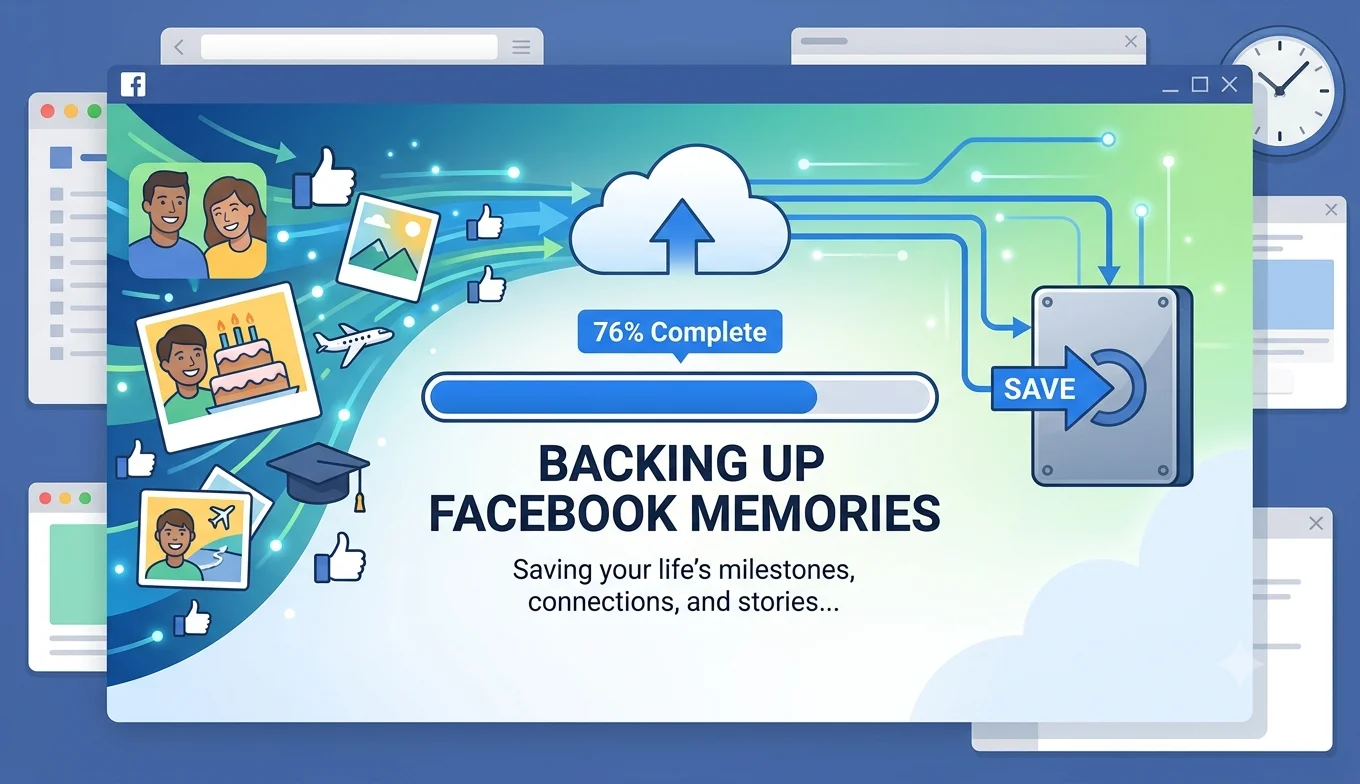
Best Practices for Backing Up Facebook Memories
The most complete way to back up your Facebook Memories is Facebook's own Download Your Information tool, which exports your photos, videos, posts, and Memories as a downloadable archive no third-party app required. Below are seven practices that together build a genuinely reliable, long-term backup habit.
Why Facebook Memories Are Worth Backing Up Deliberately
Facebook's "Memories" feature resurfaces old posts, photos, and check-ins from previous years, which for many long-time users amounts to a decade or more of personal history trips, relationships, milestones, old friendships. Unlike a Story that expires in 24 hours, this content technically stays on Facebook indefinitely, but "technically available" isn't the same as "safely backed up." Accounts get compromised, restricted, or occasionally lost entirely, and relying solely on Facebook's own servers as your only copy leaves you exposed to any of those scenarios.
1. Run a Full Download Your Information Export
- Why Facebook Memories Are Worth Backing Up Deliberately
- 1. Run a Full Download Your Information Export
- 2. Schedule Recurring Exports
- 3. Organize Photos Into Albums Proactively
- 4. Save Standout Memories to Your Camera Roll Individually
- 5. Cross-Reference With Other Photo Backups
- 6. Preserve Context, Not Just the Files
- 7. Store Your Backup in More Than One Place
- Handling Memories From a Deactivated or Merged Account
- Backing Up Memories Tied to Facebook Groups and Events
- A Simple Backup Schedule to Follow
- What's Included in a Memories-Focused Export
- Backing Up Memories From Shared or Tagged Photos
- What to Do If an Export Fails or Is Missing Content
- Why This Matters More as Time Passes
- Conclusion
This is Facebook's official, comprehensive data-export tool.
- Go to Settings & Privacy > Settings > Your Facebook Information > Download Your Information.
- Select the data types you want photos, videos, posts, Memories-eligible content, messages, and more.
- Choose a date range (all-time, for a complete backup) and a file format (HTML for easy browsing, JSON for more technical use).
- Submit the request Facebook compiles the archive and notifies you when it's ready, which can take anywhere from a few hours to a couple of days depending on how much data is included.
This single export is the closest thing to a true, complete backup of your Facebook history.
2. Schedule Recurring Exports
Rather than treating Download Your Information as a one-time task, set a recurring reminder every six months or once a year — to run a fresh export covering just the period since your last one. This keeps your backup current without needing to re-download everything each time, and protects recent Memories before enough time passes for something to go wrong.
3. Organize Photos Into Albums Proactively
Facebook's Memories feature works better, and manual browsing is far easier, when your photos are organized into named albums rather than scattered loosely across your timeline. Creating albums by year, trip, or event even retroactively for older photos makes both the in-app experience and any exported backup much easier to navigate later.
4. Save Standout Memories to Your Camera Roll Individually
For specific Memories that carry particular sentimental weight, downloading the individual photo or video directly to your device (via the three-dot menu on the post) creates an independent copy that doesn't depend on either Facebook's servers or a bulk export file staying organized and accessible. This is worth doing selectively for your most meaningful content, rather than as a substitute for a full periodic export.
- Why Your YouTube Save Offline Button Is not Working
- How to Save a YouTube Video to Watch Offline
- Are Third-Party TikTok Downloader Apps Safe to Use
5. Cross-Reference With Other Photo Backups
If you also back up photos through Google Photos, iCloud, or a similar service, cross-referencing what's already backed up there against your Facebook Memories can reveal gaps photos that only exist on Facebook and nowhere else. This is particularly common with older photos uploaded directly to Facebook in the years before automatic cloud photo backup was as widespread as it is now.
6. Preserve Context, Not Just the Files
A photo backup without captions, dates, or tagged locations loses a meaningful part of what made it a "memory" in the first place. When using Download Your Information, choose the HTML format if you want an easily browsable archive that preserves captions and comments alongside each photo, rather than just the raw image files, which the JSON format tends to separate out into less human-readable structure.
7. Store Your Backup in More Than One Place
Once you have a downloaded archive, treat it the way you'd treat any irreplaceable personal file:
- Keep a copy in cloud storage (Google Drive, Dropbox, iCloud) in addition to your local device.
- Consider an external hard drive backup for very large archives, especially if you have years of photos and videos included.
- Avoid keeping your only copy on a single aging device with no other backup the same risk that applies to any important personal file applies here too.
Handling Memories From a Deactivated or Merged Account
If you've ever merged accounts, changed your primary account, or reactivated a previously deactivated profile, some older Memories may be tied to activity that doesn't cleanly map to your current account history. Running a Download Your Information export after any such change is worth doing specifically to confirm that older content is still accessible and included, rather than assuming everything transferred over exactly as expected.
Recommended Articles
 FACEBOOK
 FACEBOOK
Backing Up Memories Tied to Facebook Groups and Events
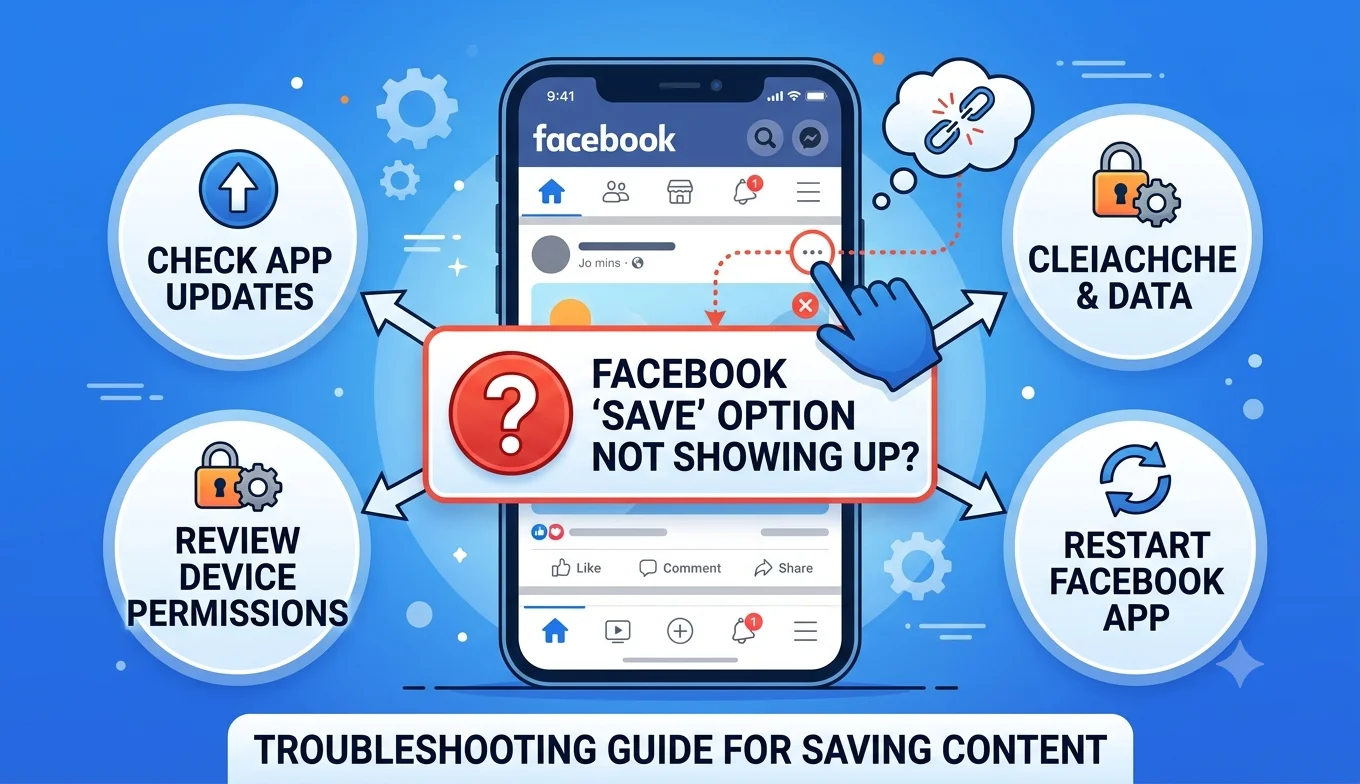
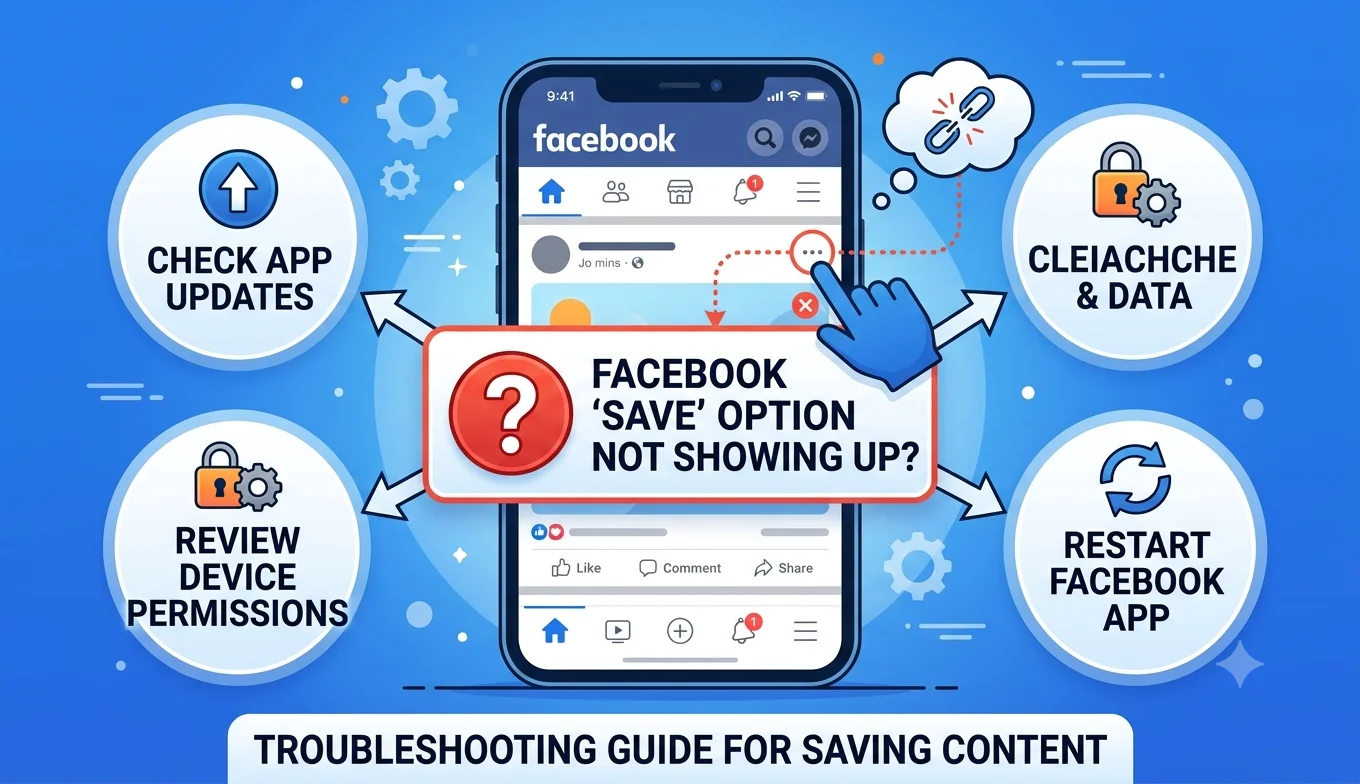
Photos and posts shared within Groups or tied to Events you've attended can also surface as Memories, but they follow slightly different ownership rules than your own profile content a photo posted by someone else within an Event you attended, for instance, belongs to that person's account for export purposes. If a Group or Event holds Memories you specifically want preserved, saving relevant photos and posts individually (where the Save or Download option is available) is more reliable than assuming a personal Download Your Information export will capture content that technically originated from someone else's account.
A Simple Backup Schedule to Follow
For most users, a manageable, low-effort routine looks like this:
- Once a year: Run a full Download Your Information export covering your entire history, store it in at least two locations.
- Every few months: Do a quick review of recent Memories and save anything particularly meaningful directly to your camera roll.
- As needed: Organize new photos into albums as you post them, rather than letting years of unsorted uploads accumulate before trying to organize retroactively.
This tiered approach balances thoroughness (the full annual export) with low-effort ongoing maintenance (the periodic saves and organizing), rather than treating backup as a single overwhelming task to put off indefinitely.
What's Included in a Memories-Focused Export
A full Download Your Information export typically includes your posts (with captions and timestamps), photos and videos you've uploaded, comments and reactions, check-ins, and tagged locations effectively the full raw material Facebook's Memories feature draws from. Because Memories itself is a curation layer on top of your existing content rather than a separate data type, backing up your underlying photos and posts through Download Your Information indirectly backs up everything Memories would ever resurface.
Backing Up Memories From Shared or Tagged Photos
Not every meaningful Memory is one you posted yourself photos a friend tagged you in are also part of your Facebook history, but they belong to the original poster's account for export purposes, not automatically to yours. If a tagged photo matters enough to want a personal backup, saving it individually to your camera roll (where available) or asking the original poster to share the file directly are the two realistic options, since Download Your Information only exports content you posted or directly control.
What to Do If an Export Fails or Is Missing Content
Large accounts with many years of history occasionally run into export issues a request that seems to complete but is missing certain data, or one that takes unusually long to process.
- Try narrowing the export to a specific date range or data type if a full-history request seems stuck.
- Check your notifications and email for confirmation that the export actually completed, since Facebook processes large requests in the background.
- If specific content is consistently missing from your export despite retries, that's worth flagging through Facebook's Help Center rather than assuming it's simply unavailable.
Why This Matters More as Time Passes
The value of a well-organized Memories backup tends to compound rather than stay flat a photo that felt unremarkable when posted can become genuinely significant years later, once the people, places, or moments in it have changed in ways you couldn't have predicted at the time. That's part of why a proactive, scheduled backup habit beats a reactive one: by the time you realize a specific memory matters enough to want a guaranteed copy, the easiest window to back it up (right after posting, while organization is simple) has usually already passed.
Conclusion
Facebook Memories represent a genuinely significant personal archive for many long-time users, and treating that archive with the same care you'd give any irreplaceable personal file through regular Download Your Information exports, organized albums, and backups stored in more than one place is the difference between a memory you can always revisit and one you're simply hoping Facebook keeps safe on your behalf indefinitely. None of the practices above require anything beyond Facebook's own built-in tools, just a bit of consistency applied over time.