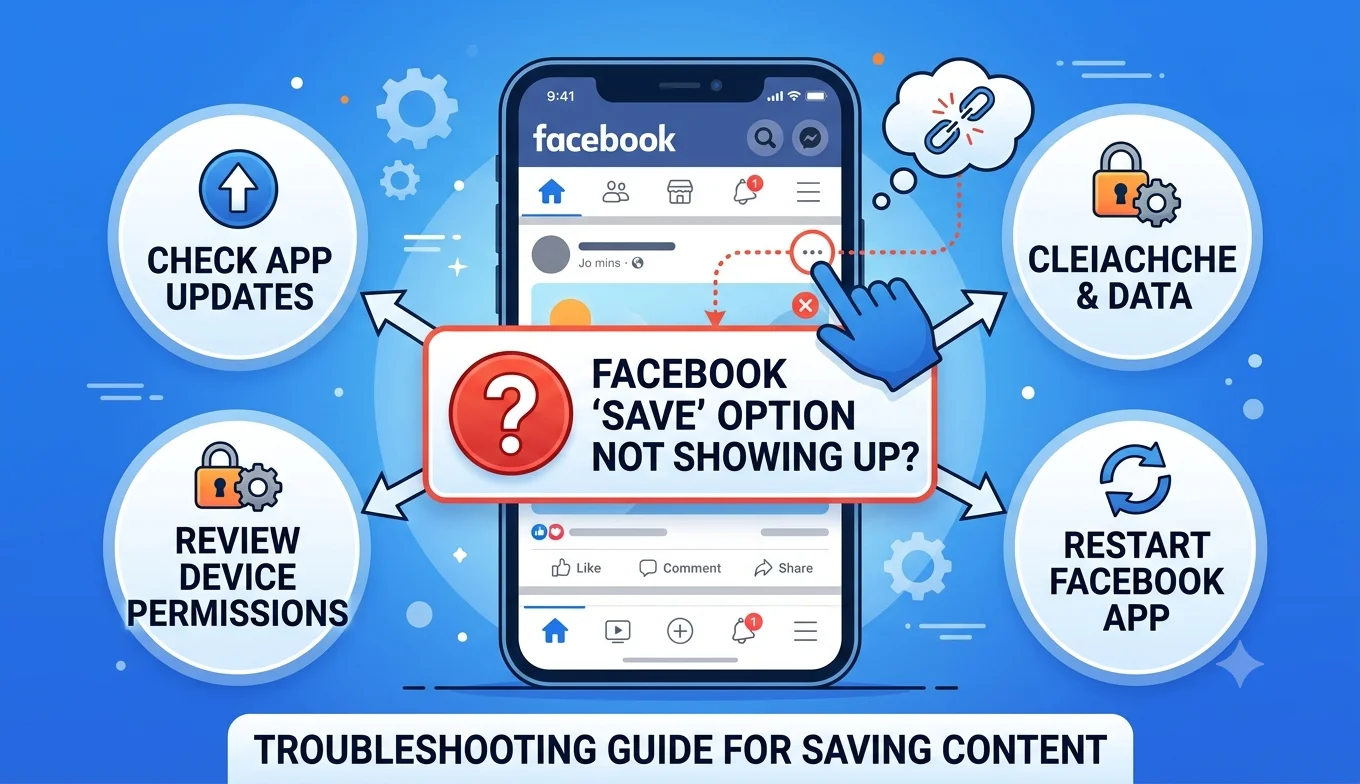
Facebook's Data Download Tool: Full Walkthrough
Facebook's Download Your Information tool lets you export a copy of nearly everything you've posted or stored on the platform photos, videos, posts, messages, comments, and more as a downloadable file. It's accessed through Settings & Privacy, takes anywhere from a few minutes to several hours depending on how much data you include, and is the only officially supported way to get a complete personal backup of your Facebook account.
Why This Tool Exists
For many long-time users, Facebook has effectively become a family photo album spanning vacations, birthdays, graduations, and everyday moments some accounts go back more than fifteen years. If access to that account is ever lost through a hack, a lock, or a disabled account, recovering it isn't always straightforward or guaranteed. Download Your Information exists specifically so you're never entirely dependent on Facebook's own servers as your only copy of that history.
Navigate to the Tool
- Why This Tool Exists
- Navigate to the Tool
- Choose What to Include
- Choose a Date Range
- Choose a File Format
- Choose Media Quality
- Submit and Wait
- Download the File Promptly
- Extract and Browse the Archive
- What's Included in a Full Export
- Handling Photos and Videos Specifically
- Using the Archive as a Family Record
- Downloading Data From Multiple Managed Profiles
- How Long Should You Keep an Old Export?
- Comparing Facebook's Tool to Other Platforms' Export Options
- Keeping Your Downloaded Archive Secure
- What to Do If the Export Seems Incomplete
- Conclusion
On desktop:
- Click your profile picture in the top-right corner.
- Select Settings & Privacy, then Settings.
- In the left-hand menu, find Your Facebook Information (in some account layouts, this now sits inside the Accounts Center).
- Select Download Your Information.
On the mobile app, the flow is nearly identical: tap your profile picture, then Settings & Privacy, then Settings, then follow the same path through Accounts Center to reach the download tool.
- Are Third-Party TikTok Downloader Apps Safe to Use
- Best Practices for Backing Up Facebook Memories
- Facebook Save Option Not Showing Up
Choose What to Include
You'll be given two main options:
- All of your information, the complete archive, covering everything Facebook has on file for your account.
- Some of your information, lets you pick specific categories individually, such as posts, photos, videos, messages, comments, groups, and check-ins.
If you're doing a full backup before deactivating an account, "All of your information" is the safer choice. If you're just after something specific say, your photos and videos only narrowing the selection significantly speeds up processing.
Choose a Date Range
You can select a specific date range or default to your entire account history. For a genuine full backup, selecting the complete history is worth the extra processing time; for a smaller, more frequent backup habit, narrowing to "since my last export" keeps things faster and more manageable.
Choose a File Format
- HTML: browsable like a website, with posts displayed similarly to how they appeared on Facebook. This is the better choice if you mainly want to look through your history.
- JSON: a more structured, technical format, better suited if you're planning to import the data into another tool or do anything programmatic with it.
For most people simply wanting an accessible personal archive, HTML is the more practical option.
Choose Media Quality
You'll typically be asked to choose a quality level for included photos and videos (often Low, Medium, or High). Higher quality produces a larger file and takes longer to process; medium quality is a reasonable default that balances file size against long-term usability, especially if the archive is meant purely as a personal backup rather than a source for reprinting high-resolution photos.
Submit and Wait
Once you click Create File, Facebook processes your request in the background. Turnaround time varies significantly based on how much data you've included a slim export covering just posts and photos at medium quality often finishes within around 30 minutes, while a full-history export including messages and high-quality media can take several hours, and in some cases longer for very large, long-standing accounts.
You'll receive an email notification once the file is ready.
Download the File Promptly
Once notified, return to the Available Files section of the same tool and click Download. You'll likely be asked to re-enter your password as a security check. Importantly, the download link doesn't stay available indefinitely the file typically expires a few days after being generated, so downloading it promptly once it's ready matters if you don't want to have to regenerate the whole export.
Extract and Browse the Archive
The downloaded file arrives as a ZIP archive.
- Windows: Right-click the file, select Extract All, choose a save location, and extract.
- Mac: Double-click the ZIP file to unzip it automatically into the same folder.
Once extracted, open the start_here file included in the folder this gives you a browsable, webpage-style interface for navigating your data, similar to browsing an offline version of Facebook itself. For photo albums specifically, the browsable interface sometimes only shows a preview image per album; to see every photo and video file individually, navigate directly into the extracted folder structure (typically under a path like your_activity_across_facebook > posts > media) using File Explorer or Finder.
Recommended Articles
 FACEBOOK
 FACEBOOK
What's Included in a Full Export
A complete Download Your Information archive typically includes your posts and captions, photos and videos, comments and reactions, messages, group memberships, check-ins, and various account activity logs. It's worth noting a few things that are NOT included: your friends list and their contact details generally aren't part of the export, and any content you've previously deleted, along with some very old data depending on Facebook's retention policies, may not appear in the archive at all.
Handling Photos and Videos Specifically
If your main goal is backing up media rather than the full account history, Facebook also offers a more targeted transfer tool that can send your photos and videos directly to a connected cloud storage service, such as Google Photos or Dropbox, without needing to extract a ZIP file manually. This is often the more convenient route if photos and videos are your primary concern rather than posts, messages, and account metadata.
Using the Archive as a Family Record
Beyond personal backup purposes, some users choose to turn a full export into something more shareable printing key photos into a physical photo book, or compiling a written summary of major life events pulled from years of posts and check-ins. The HTML-format export is particularly well-suited to this kind of retrospective use, since posts display in a familiar, readable layout rather than raw structured data.
Downloading Data From Multiple Managed Profiles
If you manage more than one Facebook profile for instance, a personal profile alongside a Page you administer the Download Your Information flow lets you choose which profile's information to export before proceeding to the selection screen. Each profile requires its own separate export request; there isn't a single combined download that pulls data from multiple profiles or Pages at once.
How Long Should You Keep an Old Export?
Since your Facebook account continues accumulating new content after you run an export, an old archive becomes progressively less "complete" as a backup over time it's a snapshot, not a live sync. Rather than treating a single export as a permanent, one-time task, plan to refresh it periodically (yearly is a reasonable cadence for most users), and keep at least the most recent one or two archives rather than immediately deleting older exports the moment a new one is created, in case something in the newer export turns out to be incomplete.
Comparing Facebook's Tool to Other Platforms' Export Options
Facebook's Download Your Information tool follows a similar pattern to Google Takeout, Instagram's Download Your Information, and other major platforms' data-export features request specific or complete data, wait for processing, then download a time-limited file. If you're already in the habit of periodically exporting from other platforms, adding Facebook to that same recurring routine (rather than treating it as a separate, one-off task) keeps your overall personal data backup approach consistent across every platform you use.
Keeping Your Downloaded Archive Secure
A Facebook data export contains a meaningful amount of personal information, so treat it accordingly once downloaded:
- Store it in a secure, ideally encrypted location rather than an easily accessible shared folder.
- Scan the downloaded file with your device's antivirus or security software before opening, as a general precaution with any downloaded archive.
- If you review the archive on a shared or public device, delete your copy afterward rather than leaving it accessible to others.
- Avoid uploading the raw export to third-party "converter" or "viewer" websites, since you don't know how those services handle the data once uploaded.
What to Do If the Export Seems Incomplete
Some deleted content and older data may not appear in your download depending on Facebook storage and retention policies this is expected behavior rather than necessarily an error with the export process. If something you're confident should be included is consistently missing across multiple export attempts, that's worth raising directly with Facebook's Help Center rather than assuming the tool itself malfunctioned.
Conclusion
Facebook Download Your Information tool is the only officially supported way to get a genuine, complete backup of your account covering years of photos, posts, and memories that many users don't realize is available in one exportable file. Choosing the right scope, format, and quality settings up front, downloading promptly once notified, and storing the resulting archive securely turns what could be an overwhelming amount of personal history into a manageable, protected backup you control independently of Facebook's own servers.