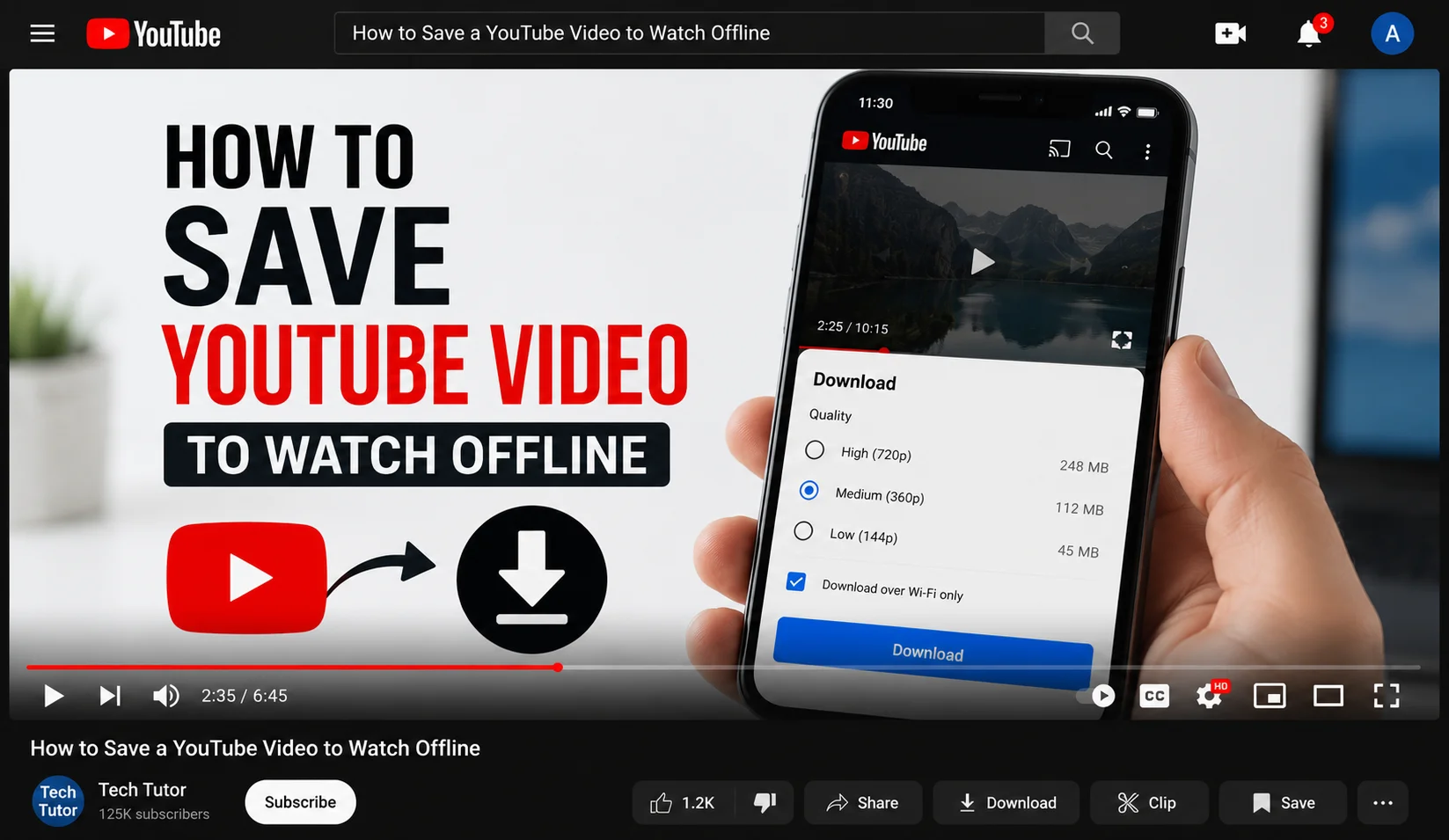
How to Save a YouTube Video to Watch Offline (Official Method)
Quick answer: YouTube lets you save videos for offline viewing directly inside its own app tap the Download button under any eligible video and it stores a temporary offline copy that plays without an internet connection, typically for up to 48 hours before needing to reconnect. This is the only method that doesn't violate YouTube's Terms of Service, doesn't risk your device with unofficial tools, and works reliably across Android, iOS, and smart TVs.
Why the Official Download Feature Is the Better Choice
If you've searched for "download YouTube video," you've probably seen dozens of third-party sites offering to convert and save videos in seconds. Before trying one, it's worth understanding why YouTube's own offline feature is the safer option:
- Account safety — third-party downloader tools can violate YouTube's Terms of Service, which risks warnings or restrictions on your account.
- Device safety — many downloader sites bundle intrusive ads, browser hijackers, or outright malware inside the "download" button.
- Reliability — YouTube updates its site frequently, and third-party tools routinely break, leaving you stuck mid-download or with corrupted files.
- Quality control — the official feature lets you pick resolution cleanly, without watermark overlays or compression artifacts some external tools add.
- Built-in maintenance — because it's a first-party feature, it keeps working after YouTube app updates instead of requiring you to find a "new working" mirror site every few months.
How to Save a YouTube Video Offline (Step-by-Step)
- Why the Official Download Feature Is the Better Choice
- How to Save a YouTube Video Offline (Step-by-Step)
- How Long Do Offline YouTube Videos Last?
- What Videos Can You Download for Free?
- Managing Storage Used by Downloads
- Downloading on a Smart TV or Tablet
- A Note on Fair Use of Downloaded Content
- Common Mistakes That Waste Storage or Break Downloads
- Downloading Multiple Videos or a Full Playlist
- Offline Playback Tips
- Conclusion
- Open the YouTube app on your phone or tablet (Android or iOS). The offline download button is not available in desktop browser versions of YouTube.
- Find the video you want to save and start playing it.
- Tap the Download icon a downward-facing arrow located below the video, next to Like, Dislike, and Share.
- Select a video quality. You'll usually be given a few options, such as a lower-storage setting and a higher-quality setting. Lower quality saves phone storage; higher quality looks sharper on larger screens.
- Wait for the download to complete. A progress ring will fill in, followed by a checkmark once the video is fully saved to your device.
- Find it anytime by opening the Library tab at the bottom of the app, then tapping Downloads.
How Long Do Offline YouTube Videos Last?
Downloaded videos are generally playable offline for about 48 hours before YouTube asks you to briefly reconnect to verify your account status and refresh the license on the file. If you're connected to Wi-Fi periodically, YouTube typically refreshes eligible downloads automatically in the background, so you rarely notice this expiration in practice. YouTube Premium subscribers often get extended offline windows and fewer interruptions.
What Videos Can You Download for Free?
Without a Premium subscription, only videos where the creator has specifically enabled the free offline-download option will show the Download button. This is a per-video, creator-controlled setting not every upload qualifies. YouTube Premium removes this restriction almost entirely, letting you download the vast majority of regular videos (excluding some music videos, live streams, and select licensed content).
Recommended Articles
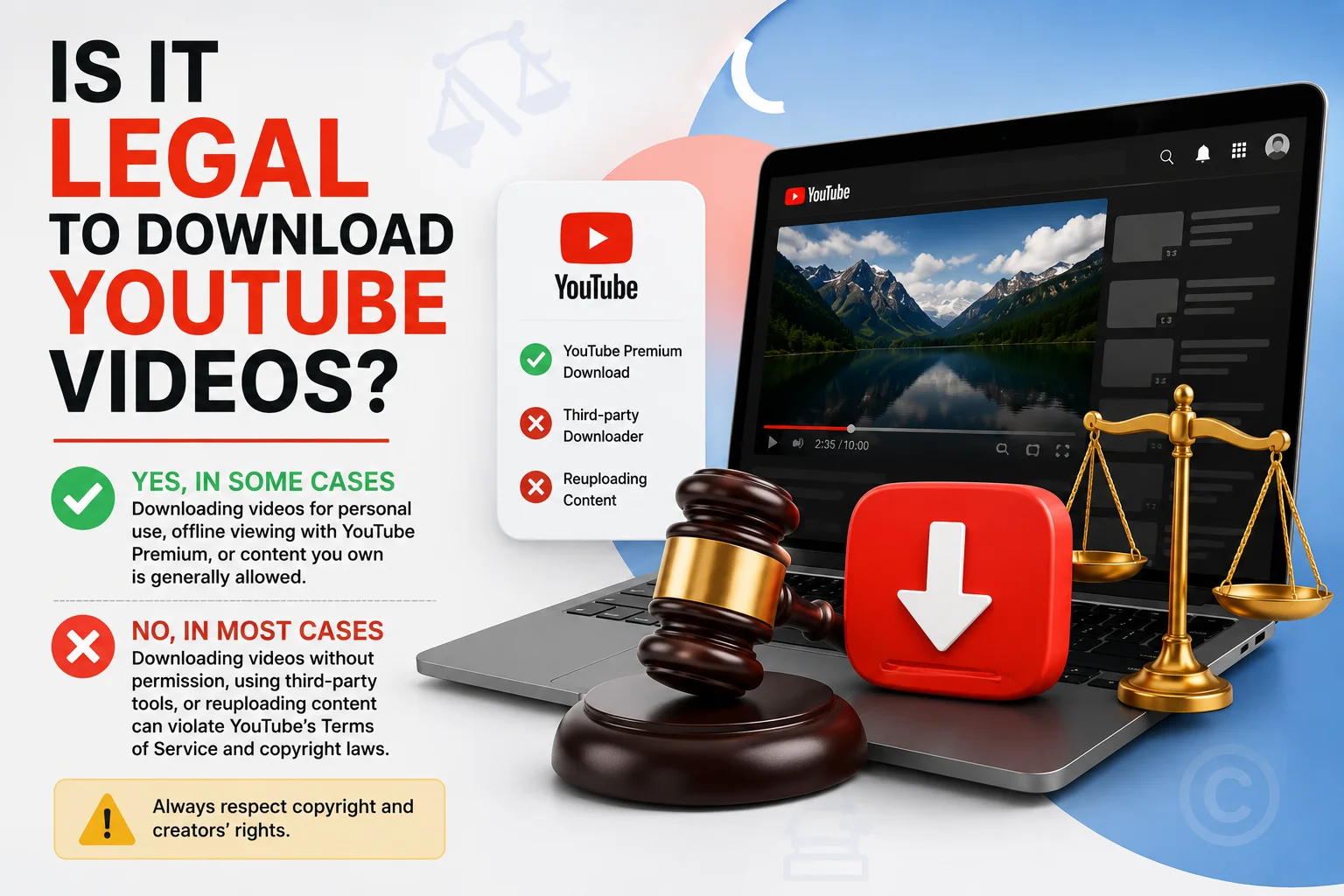 YOUTUBE
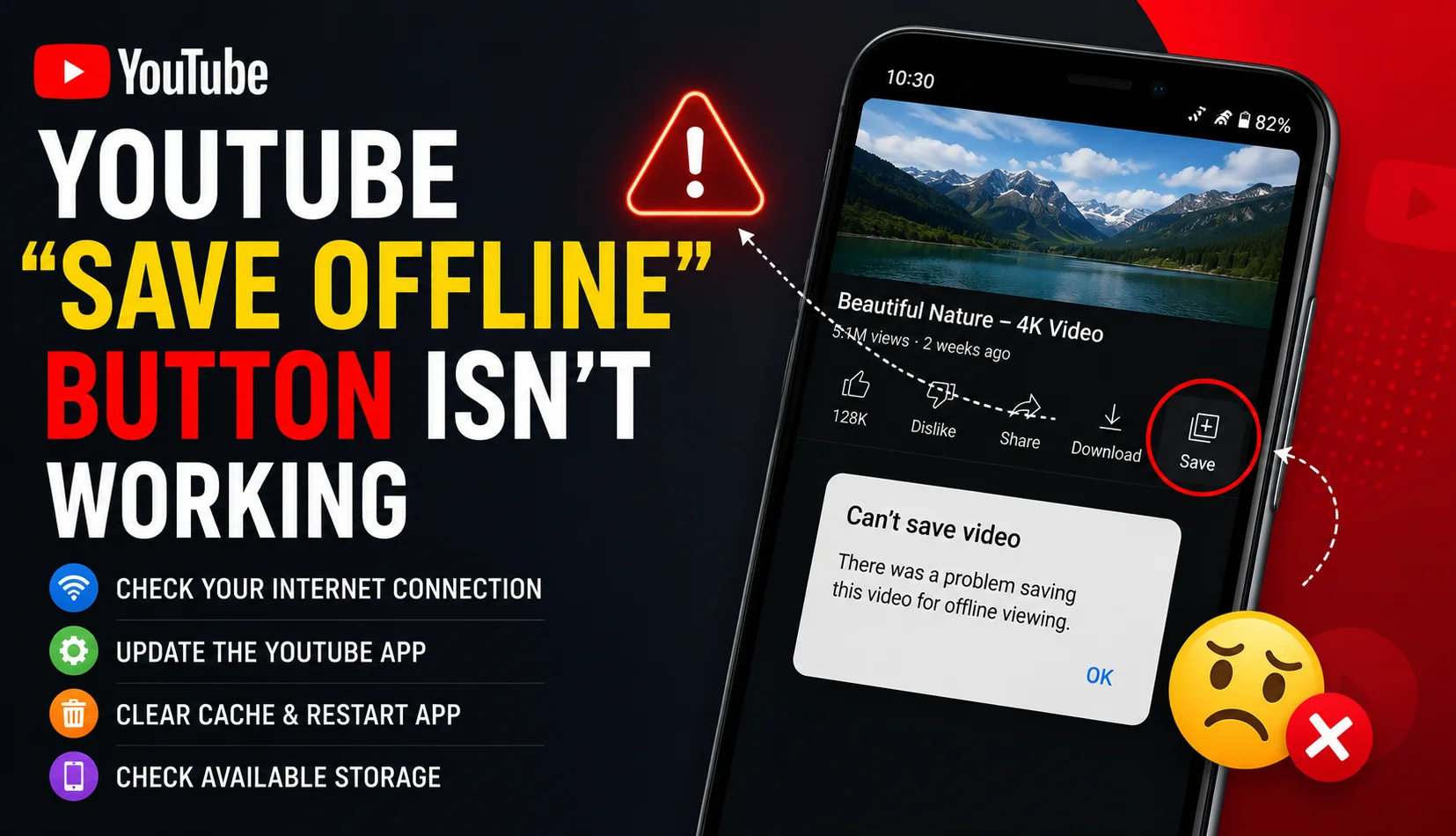 YOUTUBE
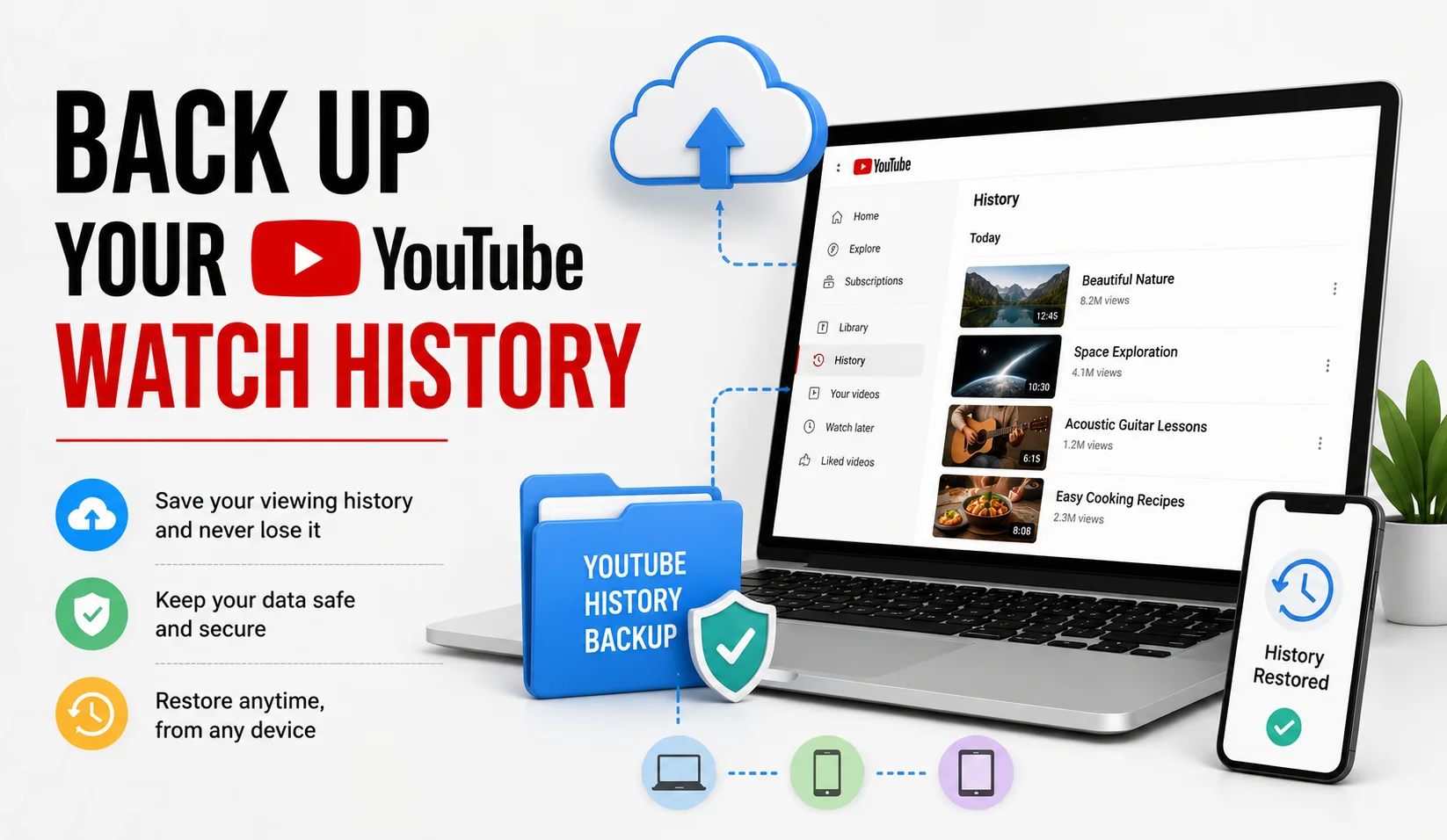 YOUTUBE
Managing Storage Used by Downloads
Offline videos can add up quickly, especially at higher quality settings. To manage this:
- Go to Library > Downloads to see everything currently stored offline.
- Tap the three-dot menu next to any download to remove it individually.
- Use Settings > Downloads inside the app to set a default download quality and a Wi-Fi-only download rule, which prevents accidental use of mobile data.
- Periodically clear videos you've already watched to free up space for new downloads.
Downloading on a Smart TV or Tablet
The download feature is primarily designed for phones and tablets where offline viewing is most useful (commutes, flights, areas with weak signal). Smart TV apps generally don't support offline downloads since TVs are almost always connected to Wi-Fi already. If you want to watch a downloaded video on a bigger screen, cast it from your phone once you're back online, or check whether your TV supports local playback from a connected device.
A Note on Fair Use of Downloaded Content
Downloading a video through YouTube's official feature only grants you a personal, Save From offline viewing license tied to your account it does not give you rights to redistribute, repost, or reuse the video elsewhere. If you want to reuse footage in your own content, look for videos explicitly marked with a Creative Commons license, or contact the creator directly for permission.
Common Mistakes That Waste Storage or Break Downloads
- Downloading at the highest quality by default: this eats storage fast; reserve high quality for videos you'll rewatch often, and use the lower setting for one-time watches.
- Forgetting to enable Wi-Fi-only downloads: without this setting, a large download can quietly burn through mobile data.
- Letting old downloads pile up: unwatched downloads sitting for weeks just take up space; review your Downloads list regularly.
- Starting a download right before losing signal: begin downloads while you still have a stable connection, not at the last minute before boarding a flight or entering a tunnel.
Downloading Multiple Videos or a Full Playlist
YouTube also lets you download an entire playlist at once from certain playlist pages in the app, rather than saving each video individually. Open the playlist, look for a Download all option near the playlist header, and choose a quality — this applies the same per-video rules (creator eligibility or Premium access) to every video in the list, so a few videos in a mixed playlist may still be skipped if they aren't individually eligible.
Offline Playback Tips
Once downloaded, offline videos appear in Library > Downloads with playback controls identical to streaming including speed adjustment, captions (if the creator added them), and resume-from-last-position. Captions are downloaded alongside the video automatically when available, so they'll still work with no connection.
Conclusion
Saving YouTube videos for offline viewing doesn't require any third-party app or website YouTube's own Download feature, built into the mobile app, is the safest, most reliable way to do it. It keeps your account in good standing, avoids the malware and reliability risks of external downloaders, and stays up to date automatically as YouTube evolves. Stick to the official method, manage your storage regularly, and you'll always have a dependable offline library ready for flights, commutes, or spotty connections.