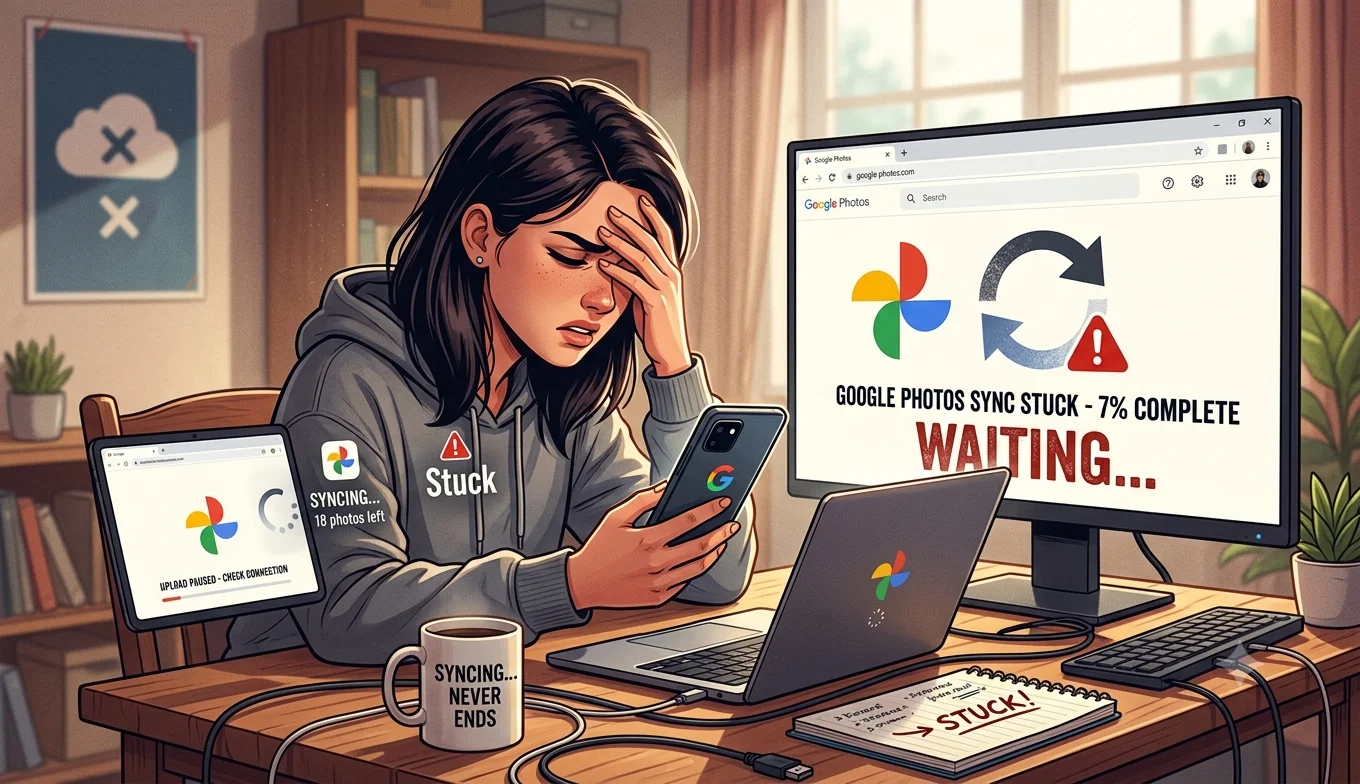
Google Photos Sync Stuck? 6 Fixes
Google Photos backup most commonly gets stuck due to a weak internet connection, insufficient Google Account storage, a paused backup setting, an outdated app, or a large batch of files (especially videos) that simply needs more time to process. Working through the fixes below in order resolves the vast majority of stalled syncs.
1. Check Your Internet Connection
A weak or unstable Wi-Fi or mobile data connection Save From is the single most common cause of a backup that appears frozen at a specific percentage or file count.
Fix: Switch to a stronger, more stable connection ideally Wi-Fi for large batches and check whether the backup progress resumes. If your backup settings are set to Wi-Fi-only (a common default to avoid mobile data charges), confirm you're actually connected to Wi-Fi rather than assuming you are.
2. Check Your Google Account Storage
- 1. Check Your Internet Connection
- 2. Check Your Google Account Storage
- 3. Check That Backup Isn't Paused
- 4. Update the App
- 5. Clear the App's Cache
- 6. Give Large Batches More Time
- Checking for a Broader Google Services Outage
- Does Device Storage (Not Just Google Account Storage) Matter?
- Sync Issues Specific to Switching Devices
- Battery Optimization Settings That Can Interfere
- Wi-Fi Network-Specific Issues
- Checking Whether Specific File Types Are the Problem
- Restarting Your Device as a General Fix
- A Quick Diagnostic Order to Follow
- When to Contact Google Support
- Preventing Future Sync Problems
- Conclusion
If you've run out of available storage across your Google Account (shared between Photos, Gmail, and Drive), new backups will stop processing even though the app may not always display an obvious error message immediately.
Fix: Go to Settings > Manage storage within the Google Photos app, or check storage directly at one.google.com, to confirm you have space available. If you're out of storage, either free up space by deleting unneeded files across your Google Account, or upgrade to a larger storage plan.
3. Check That Backup Isn't Paused
Google Photos has a setting that can pause backup temporarily sometimes toggled accidentally, or automatically paused after certain account or connection changes.
Fix: Open the Google Photos app, go to Settings > Backup, and confirm the backup toggle is switched on rather than paused.
4. Update the App
An outdated version of the Google Photos app can cause backup processes to behave unpredictably, including appearing to freeze partway through a large batch.
Fix: Update Google Photos from the Play Store or App Store, restart your device, and check whether the backup resumes normally.
5. Clear the App's Cache
A corrupted local cache can interfere with the backup process without necessarily causing any other visible app problems.
Fix (Android): Go to Settings > Apps > Google Photos > Storage > Clear Cache (not Clear Data, which would remove your local app settings and require signing in again). Fix (iPhone): iOS doesn't support direct cache clearing instead, offload the app (Settings > General > iPhone Storage > Google Photos > Offload App) and reinstall it.
6. Give Large Batches More Time
If you've recently added a large number of photos or videos at once for example, after restoring from a different backup or importing years of old photos the backup process can genuinely take a long time to work through the full batch, particularly for high-resolution videos, and this can look identical to a stuck sync even when it's actually still processing normally in the background.
Fix: Leave the app running (or check back periodically) rather than repeatedly restarting the backup process, since interrupting a long-running batch can sometimes cause it to restart from an earlier point rather than resuming where it left off.
Checking for a Broader Google Services Outage
Occasionally, backup issues stem from a temporary problem with Google's own servers rather than anything on your device. Checking Google's official Workspace Status Dashboard or a general service-status tracking site can confirm whether other users are reporting similar issues at the same time, which would indicate the problem is on Google's end rather than something to keep troubleshooting locally.
Does Device Storage (Not Just Google Account Storage) Matter?
Yes separately from your Google Account's cloud storage limit, your device's own local storage can affect backup reliability too. If your phone is very low on local storage, the Google Photos app may struggle to process files during the upload process even before they reach Google's servers, since some temporary local processing is often involved.
Fix: Free up local device storage, particularly if you've also been seeing broader signs of low storage (slow app performance, failed downloads in other apps) alongside the stuck backup.
- Are Third-Party TikTok Downloader Apps Safe to Use
- How to Download Your Own Google Photos Album
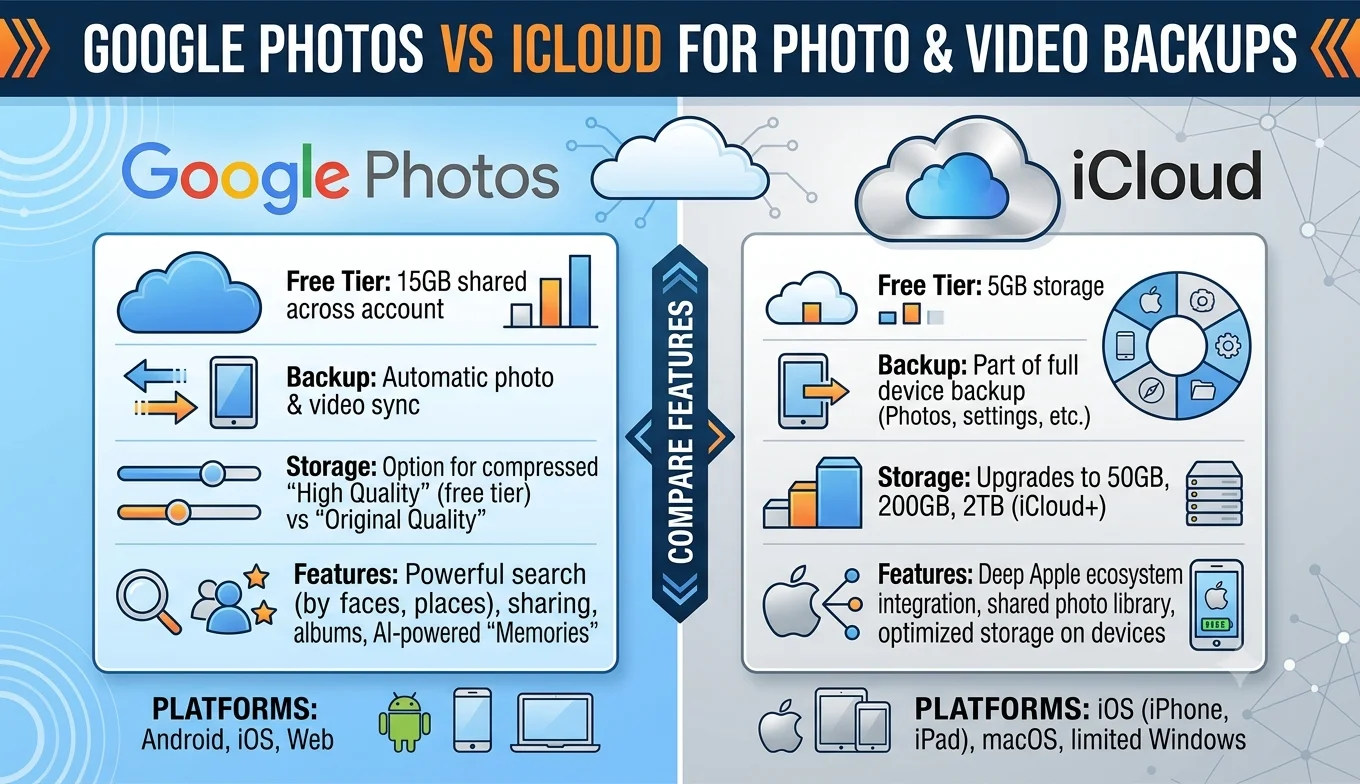
- Comparing Google Photos vs iCloud for Backups
Sync Issues Specific to Switching Devices
If you've recently switched phones or reinstalled the app on a new device, backup can sometimes appear stuck while Google Photos is actually working through a comparison process checking which photos already exist in your cloud library against what's on the new device, to avoid uploading duplicates. This initial scanning phase can look identical to a genuinely frozen backup, particularly on large libraries, but typically resolves once the comparison finishes and actual uploading begins. Libraries with tens of thousands of photos can take a noticeably longer time to complete this initial scan than a more modest, few-thousand-photo library.
Recommended Articles
 DEVICES AND STORAGE
 DEVICES AND STORAGE
Battery Optimization Settings That Can Interfere
On Android in particular, aggressive battery optimization settings can restrict background app activity, including Google Photos' ability to continue backing up files when the app isn't actively open.
Fix: Check your device's battery settings (usually under Settings > Battery > Battery Optimization or App Battery Usage) and confirm Google Photos isn't set to a restricted background activity mode, which would prevent uploads from continuing while you're using other apps.
Wi-Fi Network-Specific Issues
Occasionally, a specific Wi-Fi network particularly public or restricted networks like those in offices, schools, or some hotels can block or throttle the kind of background upload traffic Google Photos uses, even though the connection otherwise appears to work fine for browsing.
Fix: If backup consistently stalls only on one particular network, try switching to a different Wi-Fi network or mobile data temporarily to confirm whether the network itself is the cause.
Checking Whether Specific File Types Are the Problem
If most photos back up fine but specific videos or unusually large files consistently fail or stall, the issue may be tied to that specific file type or size rather than your connection or account broadly.
Fix: Try manually backing up just the problematic file in isolation to see if it completes on its own; if it consistently fails while other content backs up normally, the individual file itself (potentially corrupted, or in an unusual format) may be the actual cause rather than a broader sync problem.
Restarting Your Device as a General Fix
Before diving into more granular settings, a simple device restart resolves a meaningful share of sync issues by clearing various background processes and temporary glitches that can accumulate across any app, not just Google Photos specifically.
- Best Practices for Backing Up Facebook Memories
- Facebook Save Option Not Showing Up
- Facebook Data Download Tool
- How to Download Your Own Google Photos Album
A Quick Diagnostic Order to Follow
- Confirm you have a stable internet connection.
- Check your Google Account storage isn't full.
- Confirm backup isn't paused in settings.
- Update the app.
- Restart your device.
- Clear cache (Android) or offload and reinstall (iPhone).
- If it's a large batch, give it more time rather than repeatedly restarting the process.
When to Contact Google Support
If you've worked through every relevant fix and backup remains consistently stuck across multiple sessions, days, and even after a full device restart, Google Photos' in-app Help & Feedback option (accessible from Settings) lets you send a detailed report, which is more likely to get useful attention than trying every possible fix indefinitely on your own. Include specifics device model, app version, roughly how many files are affected since a detailed report is easier to diagnose than a general complaint.
Preventing Future Sync Problems
A few ongoing habits reduce how often you run into a stuck backup:
- Keep the app set to auto-update so you're rarely running a significantly outdated version for long.
- Periodically check your Google Account storage before it becomes completely full, rather than discovering the issue only after backups have already stalled.
- Avoid force-closing the app during an active backup, particularly for large batches, since interrupting the process partway through can occasionally cause more issues than letting it complete or fail naturally on its own.
- If you regularly import large batches of old photos at once (for example, after switching phones), expect the initial backup to take noticeably longer than day-to-day incremental backups, and plan accordingly rather than assuming something is wrong.
Conclusion
A stuck Google Photos backup is usually explained by one of a handful of common causes a weak connection, full storage, a paused setting, restrictive battery optimization, or simply a large batch that needs more processing time than expected. Working through the checklist above in order resolves nearly every case, and understanding the difference between a genuinely stuck sync and a large batch (or device-switch comparison scan) still quietly working in the background helps avoid unnecessary repeated restarts that can sometimes make the underlying problem worse rather than better.