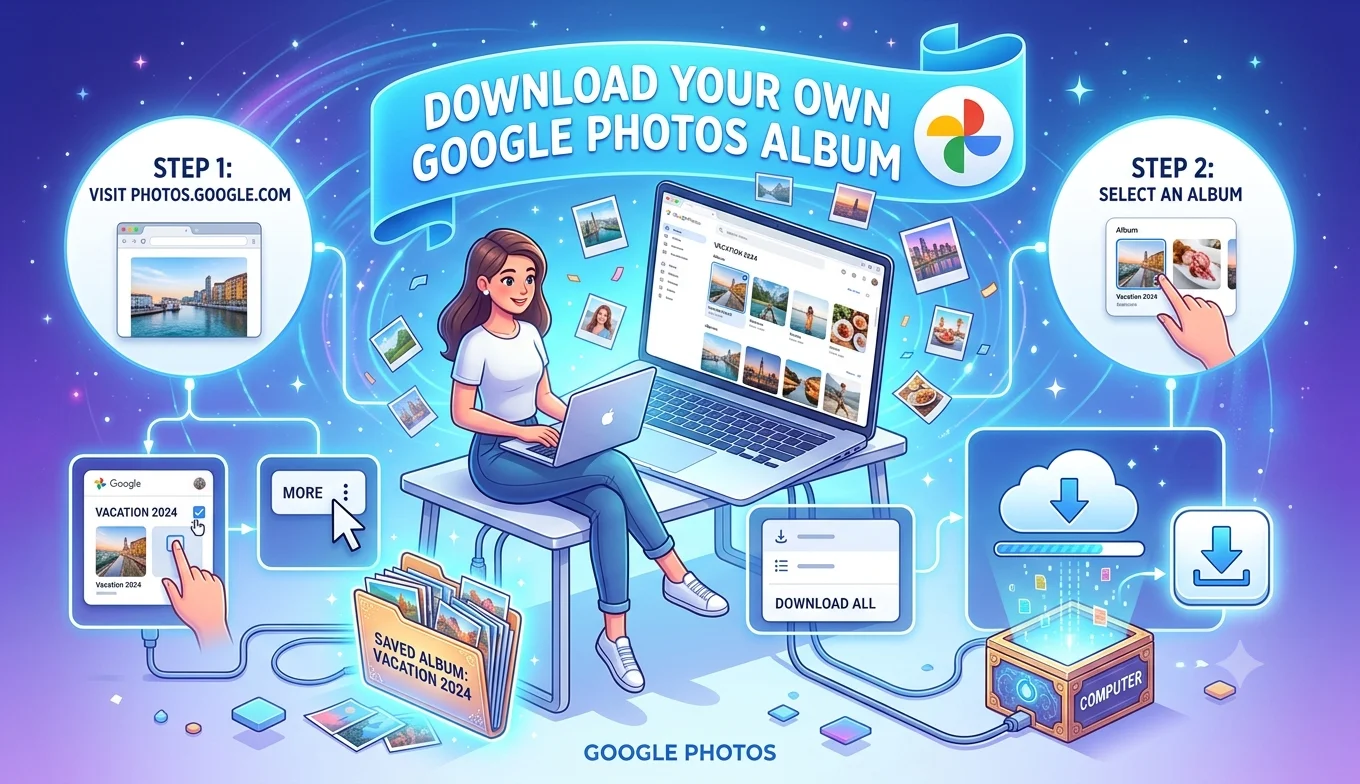
How to Download Your Own Google Photos Album
You can download an entire Google Photos album directly from the app or web interface by opening the album, selecting all items, and choosing Download, which saves everything as a ZIP file. For individual photos, a single Download option on the photo itself works the same way, without needing any third-party app.
Downloading an Entire Album (Desktop/Web)
- Go to photos.google.com and sign in.
- Open the album you want to download from the Albums tab.
- Click the three-dot menu in the top-right corner of the album.
- Select Download all, which packages every photo and video in the album into a single ZIP file.
- Once downloaded, extract the ZIP file to access the individual photos and videos.
This is the fastest way to get a complete album backup without downloading each photo one at a time.
Downloading an Entire Album (Mobile App)
- Downloading an Entire Album (Desktop/Web)
- Downloading an Entire Album (Mobile App)
- Downloading Individual Photos or Videos
- Understanding Original vs. Compressed Quality
- Downloading Shared Albums
- Downloading Photos From a Shared Link
- Bulk Downloading Your Entire Library (Not Just One Album)
- Downloading to a Specific Folder on Your Computer
- What Happens to Photo Metadata When You Download
- Downloading Live Photos and Motion Photos Correctly
- Handling Duplicate or Near-Duplicate Photos Before Downloading
- Downloading Videos Specifically From Google Photos
- Re-Uploading Downloaded Photos Elsewhere
- Downloading a Shared Album You No Longer Have Access To
- Troubleshooting a Stuck or Failed Album Download
- Downloading on a Tablet
- A Quick Reference for Choosing the Right Method
- Conclusion
- Open the Google Photos app and go to the album.
- Tap the three-dot menu in the top-right corner.
- Tap Select all to highlight every photo and video in the album.
- Tap the three-dot menu again (or the Share icon, depending on your app version) and choose Download.
- On Android, files save directly to your device's gallery or a dedicated Google Photos folder. On iPhone, they save to your Photos app.
- Are Third-Party TikTok Downloader Apps Safe to Use
- Best Practices for Backing Up Facebook Memories
- Facebook Save Option Not Showing Up
Downloading Individual Photos or Videos
If you only want a specific photo rather than the whole album:
- Open the photo or video.
- Tap the three-dot menu (mobile) or right-click the image (desktop).
- Select Download.
This saves the original file directly without affecting anything else in the album.
Understanding Original vs. Compressed Quality
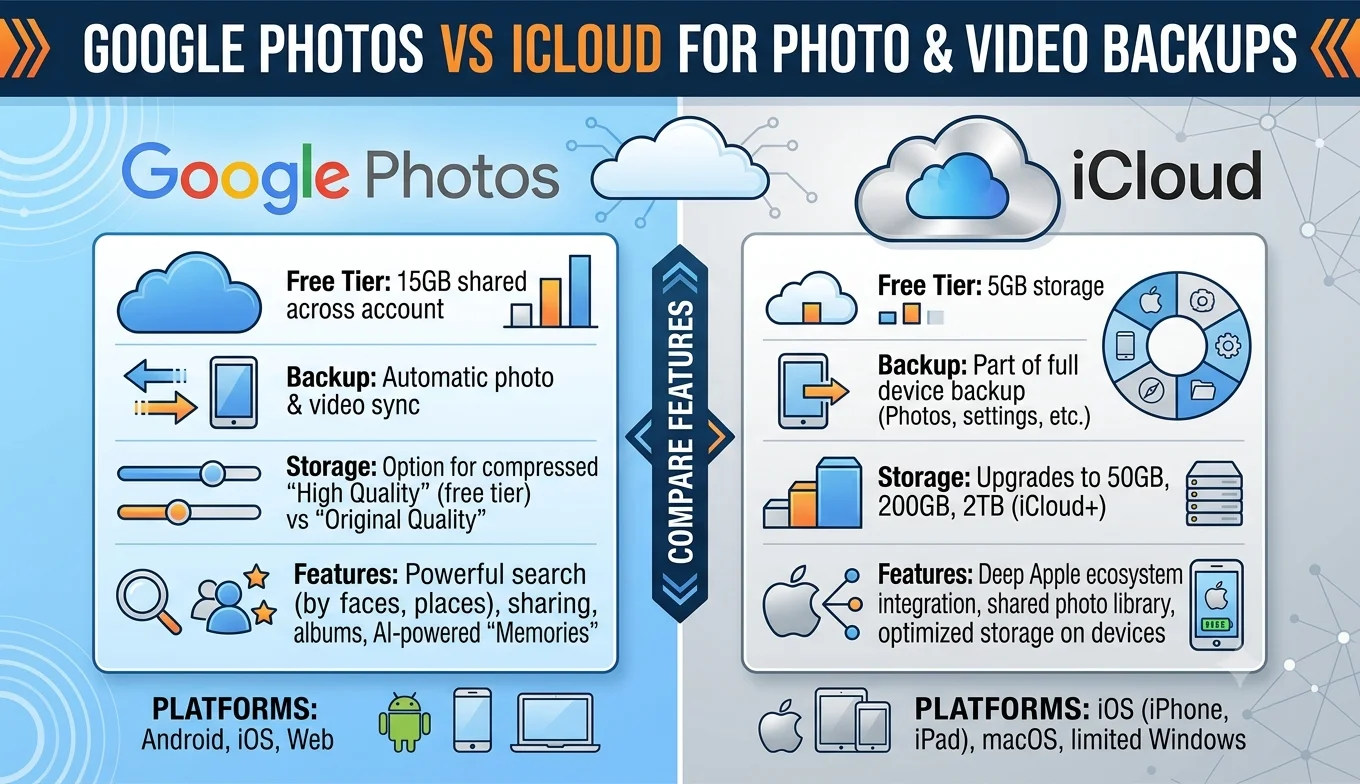
Google Photos historically offered a "high quality" storage tier that compressed photos to save space, alongside an "original quality" tier that counted fully against your Google Account storage. When downloading, the file you get generally matches whichever quality tier the photo was originally uploaded or stored at a photo saved under compressed storage won't suddenly become higher resolution just because you're downloading it. If preserving maximum quality matters, check your upload settings before adding new photos, since this affects the ceiling on what you can later download, not just what you can view in the app.
Downloading Shared Albums
If you're a collaborator on someone else's shared album rather than the owner, the same download steps generally apply shared albums support the same "Download all" and individual download options as albums you created yourself, provided the album owner hasn't restricted downloading for collaborators. If the option is missing, the album owner has likely turned off that permission for shared collaborators.
Downloading Photos From a Shared Link
If someone sent you a Google Photos shared album link rather than adding you as a collaborator, you can typically still view the album and, depending on the sharing settings, download photos from it the same way via the three-dot menu or individual photo download option, without needing a Google account of your own in many cases.
- Why Your YouTube Save Offline Button Is not Working
- How to Save a YouTube Video to Watch Offline
- Facebook Data Download Tool
Bulk Downloading Your Entire Library (Not Just One Album)
If you want everything in your Google Photos library, not just a single album, the more efficient route is Google Takeout rather than manually downloading album by album:
- Go to Google Takeout and sign in.
- Select Google Photos (deselect other Google services if you only want photos).
- Choose your export format and delivery method (a downloadable ZIP, or direct transfer to another cloud service).
- Submit the request and wait for Google to prepare the export, which can take anywhere from minutes to hours or longer depending on library size.
This is the better choice for a full backup, while the in-app album download is better suited to grabbing a specific, smaller set of photos quickly.
Downloading to a Specific Folder on Your Computer
When downloading via a desktop browser, most browsers let you choose a destination folder before the download starts, or default to a standard Downloads folder. For larger album downloads, it's worth confirming your browser's default download location has enough free space before starting, particularly for albums containing many high-resolution photos or videos.
Recommended Articles
 DEVICES AND STORAGE
 DEVICES AND STORAGE
What Happens to Photo Metadata When You Download
Downloaded photos generally retain their original metadata including the date taken, and location data if it was included when the photo was originally captured or uploaded. This is worth knowing if you're downloading photos specifically to preserve chronological or location context, since that information travels with the file rather than being stripped out during download.
Downloading Live Photos and Motion Photos Correctly
Live Photos (iPhone) and Motion Photos (Android) contain both a still image and a short video clip bundled together. When downloaded through Google Photos, these typically export as a combined file format that preserves the motion component, though how that file behaves afterward depends on the app you open it with — some photo viewers display only the still frame unless the app specifically supports the motion format. If you need just the still image or just the video portion separately, check your device's photo editing tools for an option to export the components individually before or after downloading.
Handling Duplicate or Near-Duplicate Photos Before Downloading
Large albums, especially ones built from automatic phone backups, often accumulate near-duplicate photos several shots of the same moment taken in quick succession. Reviewing and removing obvious duplicates before running a bulk album download keeps the resulting ZIP file smaller and the eventual archive easier to browse, rather than downloading everything and sorting through duplicates afterward.
Downloading Videos Specifically From Google Photos
Videos in Google Photos download the same way as photos through the three-dot menu on an individual video, or included automatically as part of a "Download all" album export. One difference worth knowing: videos, especially longer ones, contribute far more to both your Google Account storage and the size of any bulk download than photos do, so albums heavy with video content will produce noticeably larger ZIP files and take longer to prepare.
Re-Uploading Downloaded Photos Elsewhere
If your goal in downloading is ultimately to move photos to another service (a different cloud provider, a local backup drive, or a printed photo book service), most standard photo and video file formats exported from Google Photos are broadly compatible with other platforms without needing any conversion. The main exception is combined Live Photo/Motion Photo files, which some third-party services may only partially support, typically displaying just the still image rather than the motion component.
Downloading a Shared Album You No Longer Have Access To
If you were previously a collaborator on a shared album and lost access because the owner removed you, deleted the album, or changed sharing settings there's no way to retroactively download content you no longer have permission to view. This is a good reason to download anything meaningful from a shared album proactively, rather than assuming continued access is guaranteed indefinitely.
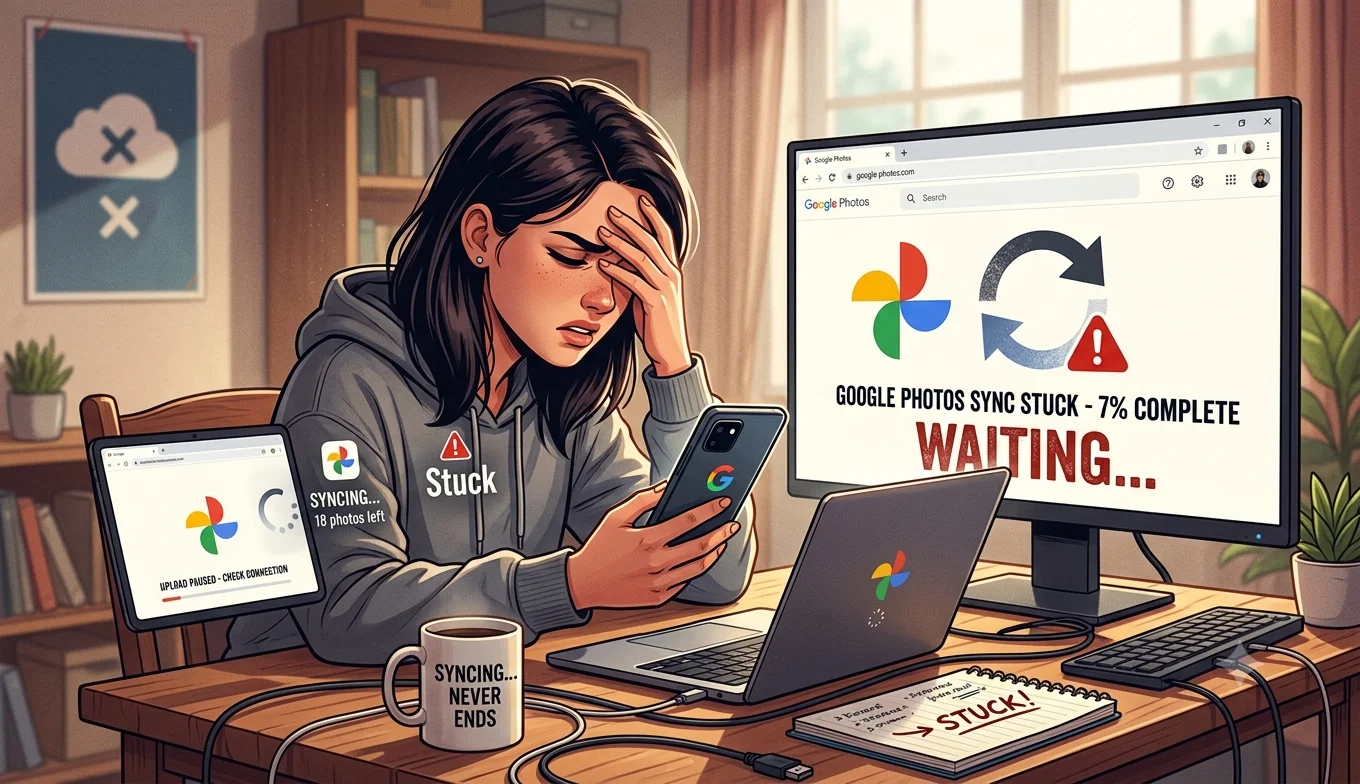
Troubleshooting a Stuck or Failed Album Download
If a "Download all" request seems to hang or fail on a large album, a few things help:
- Try a stronger, more stable internet connection, especially for albums with many high-resolution videos.
- Break a very large album into smaller batches by selecting fewer items at a time rather than the entire album at once.
- Confirm your browser or app is updated, since older versions can occasionally struggle with large ZIP generation.
Downloading on a Tablet
The same download steps used on phones work identically on tablets running the Google Photos app the three-dot menu, Select all, and Download options appear in the same places. The larger screen mainly helps with reviewing and organizing a large album before deciding exactly what to download.
A Quick Reference for Choosing the Right Method
- A single photo or video → individual Download from the three-dot menu.
- One album → "Download all" from the album's three-dot menu.
- Your entire library → Google Takeout.
- Ongoing full backups → schedule recurring Google Takeout exports rather than repeating individual album downloads.
Conclusion
Downloading your own Google Photos albums doesn't require any third-party tool the built-in "Download all" option handles entire albums efficiently, individual photo downloads cover one-off needs, and Google Takeout is the right choice when you want your complete library rather than a single album. Together, these built-in options cover essentially every download scenario a typical user runs into, without any of the security or reliability concerns that come with unofficial extraction tools, and understanding quality tiers, shared-album permissions, and file formats in advance helps you get exactly the result you expect the first time.