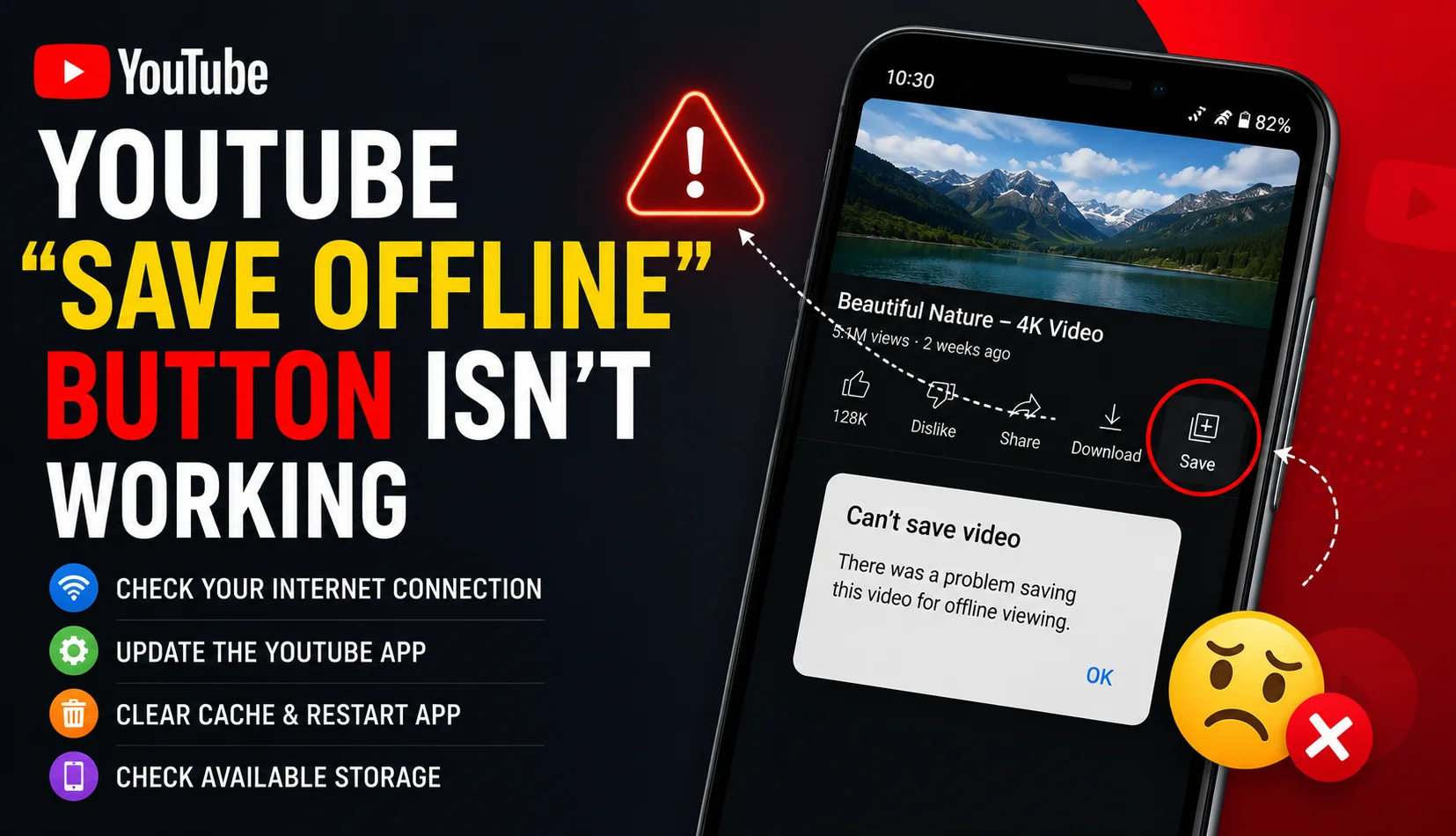
Why Your YouTube "Save Offline" Button Isn't Working
The YouTube Download button usually fails to appear or work for one of six reasons: the video isn't eligible for free downloads, you're using a browser instead of the app, your app is outdated, you've hit your download limit, your device is low on storage, or you're on a region/account type that restricts the feature. Below is how to check and fix each one.
1. You're Using YouTube in a Browser, Not the App
The offline download feature only exists in YouTube's mobile app (Android and iOS). If you're on desktop Chrome, Safari, or Firefox, there is no built-in download option visible under the video this is expected behavior, not a bug.
Fix: Open the same video in the YouTube mobile app to see the Download button appear below the player.
2. The Video Isn't Eligible for Free Offline Saving
- 1. You're Using YouTube in a Browser, Not the App
- 2. The Video Isn't Eligible for Free Offline Saving
- 3. Your App Is Outdated
- 4. You've Reached Your Download Limit
- 5. Regional or Account-Level Restrictions
- 6. Storage Is Full on Your Device
- 7. A Weak or Unstable Internet Connection
- 8. Corrupted App Cache
- When None of These Fixes Work
- A Quick Diagnostic Checklist
- Reporting a Persistent Bug to YouTube
- Preventing Future Download Problems
- Conclusion
Without YouTube Premium Save From only videos where the creator specifically enabled offline access are downloadable.
Fix: Check for the Download icon directly under the video. If it's missing entirely (not greyed out, simply absent), the creator hasn't enabled it for non-Premium viewers there's no in-app workaround for this, since it's a per-video setting controlled by the uploader.
3. Your App Is Outdated
An old version of the YouTube app can have a broken, missing, or unresponsive Download button even on videos that are otherwise eligible.
Fix: Update the YouTube app from the Play Store or App Store, restart your phone, and try the download again on the same video.
4. You've Reached Your Download Limit
Some free accounts using creator-enabled downloads have a cap on the number of active offline videos stored at once.
Fix: Go to Library > Downloads, remove a few older videos you've already watched, then try downloading the new one again.
5. Regional or Account-Level Restrictions
In some countries, or on certain managed/work and supervised accounts, download features may be disabled entirely as a matter of policy rather than a technical glitch.
Fix: Check whether you're signed into a Google Workspace, school, or supervised (family-managed) account with restricted permissions. Try the same download on a personal, unrestricted account to confirm whether the account type is the cause.
6. Storage Is Full on Your Device
If your phone or tablet is low on storage, downloads can silently fail, get stuck at 0%, or stop partway through without a clear error message.
Fix: Go to your device's storage settings, clear space (delete unused apps, photos, or old downloads), and retry.
Recommended Articles
 YOUTUBE
 YOUTUBE
 YOUTUBE
7. A Weak or Unstable Internet Connection
Downloads that stall or repeatedly restart are often caused by a poor Wi-Fi or mobile data connection rather than an app problem.
Fix: Switch to a stronger, more stable connection ideally Wi-Fi rather than mobile data before starting a longer or higher-quality download.
8. Corrupted App Cache
Occasionally, YouTube's local cache becomes corrupted after an update or interrupted download, causing the Download button to appear unresponsive across multiple videos.
Fix: Go to your phone's Settings > Apps > YouTube > Storage, and tap Clear Cache (not Clear Data, which would sign you out). Reopen the app and try again.
When None of These Fixes Work
If you've confirmed the video is eligible, your app is updated, storage is available, and the connection is stable, but downloads still fail consistently, it's worth checking YouTube's official Help Center or Twitter/X support account for any ongoing, widespread service issue occasionally the download feature experiences temporary outages affecting many users at once, unrelated to anything on your device.
A Quick Diagnostic Checklist
Run through these in order before assuming something is seriously wrong:
- Confirm you're in the YouTube mobile app, not a browser.
- Confirm the video shows a visible Download icon (not just missing).
- Update the app to the latest version.
- Check available device storage.
- Switch to a stable Wi-Fi connection.
- Clear the app's cache.
- Restart your device.
Most download failures resolve within the first four steps.
Reporting a Persistent Bug to YouTube
If the issue is clearly on YouTube's end for example, downloads fail on multiple videos, multiple devices, and after every fix above you can report it directly through the YouTube app's Help & Feedback menu (Settings > Help & Feedback > Send Feedback), which routes the report with your device and app version attached, giving YouTube's team useful diagnostic context.
Preventing Future Download Problems
- Keep the YouTube app set to auto-update so you're never running an outdated version.
- Periodically clear watched downloads instead of letting your Downloads list grow indefinitely.
- Start downloads on Wi-Fi when possible, especially for longer or higher-quality videos.
- Avoid force-closing the app mid-download, which can corrupt the partial file and cause repeated failures on retry.
Conclusion
Most YouTube download failures come down to a handful of simple causes wrong app context, an ineligible video, outdated software, low storage, or a shaky connection. Working through the diagnostic checklist above resolves the vast majority of cases without needing to reinstall anything or contact support. If a fix doesn't stick, report it directly to YouTube so the underlying bug gets visibility rather than relying on workarounds.