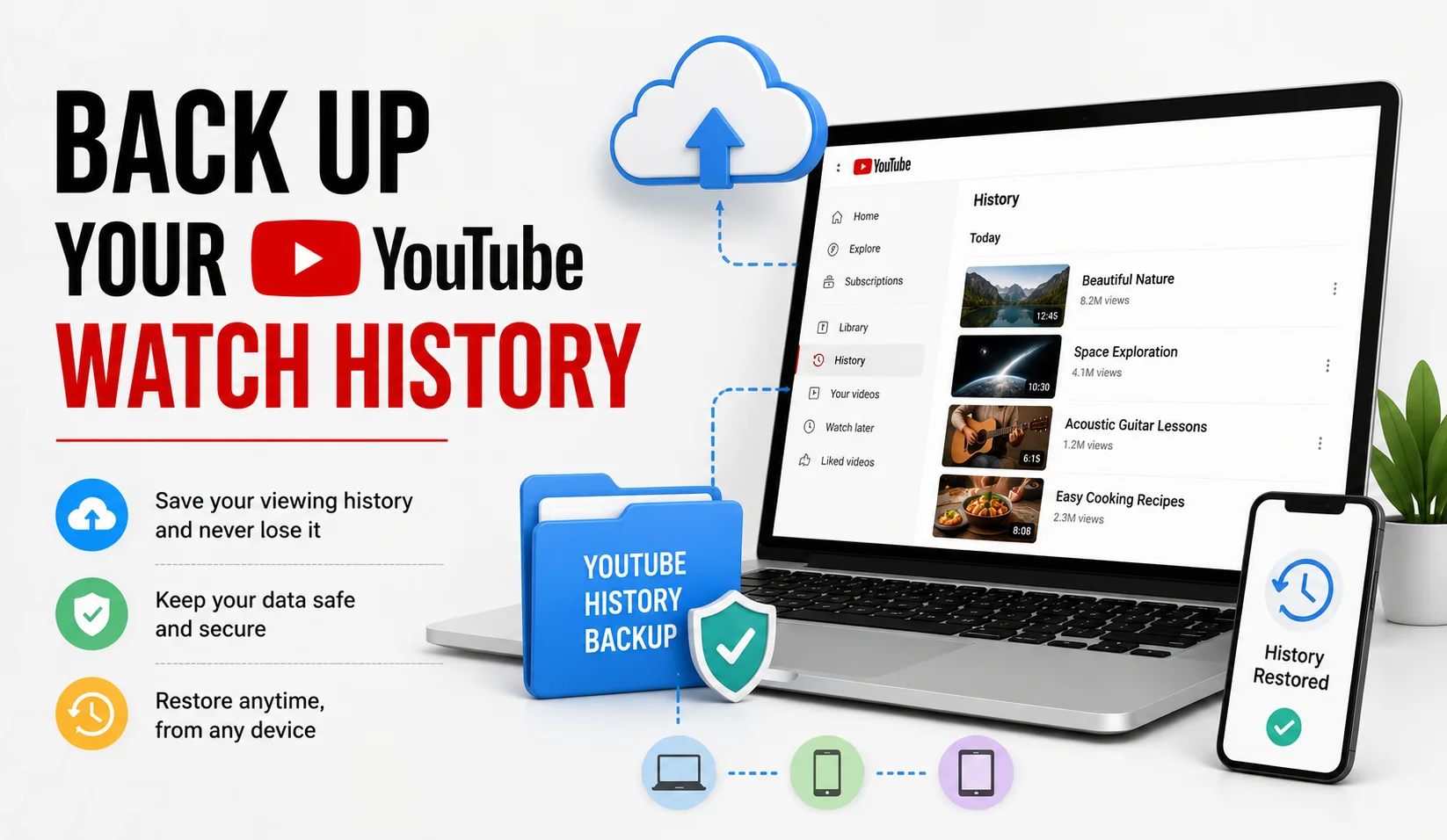
7 Legit Ways to Back Up Your YouTube Watch History
The most reliable way to back up your YouTube watch history is through Google Takeout, which exports your full history, playlists, subscriptions, and liked videos as downloadable files no third-party tool required. Below are seven methods that together cover every part of your YouTube activity.
Why Bother Backing Up Your YouTube History at All?
Your watch history, playlists, and liked videos represent years of curation research references, favorite creators, tutorials you meant to revisit. None of that is guaranteed to stay put forever: accounts get compromised, videos get taken down, and platform policies change. A simple periodic backup protects that record without costing anything.
Export Everything with Google Takeout
- Why Bother Backing Up Your YouTube History at All?
- Export Everything with Google Takeout
- Save Playlists Individually
- Turn Liked Videos into a Standalone Playlist
- Use "Watch Later" as a Rolling Checkpoint
- Keep a Lightweight Metadata Log
- Subscribe to Channel Uploads via RSS
- Schedule Recurring Google Takeout Exports
- How to Choose the Right Method for You
- What a Takeout Export Actually Contains
- Keeping Your Backup Secure
- What to Do If a Takeout Export Fails or Gets Stuck
- Restoring or Using Your Backup Later
- Conclusion
Google Takeout is Google's official data-export tool and by far the most complete way to back up YouTube data.
- Go to Google Takeout and select YouTube and YouTube Music.
- Choose specific data types: watch history, search history, playlists, subscriptions, comments, and video metadata.
- Export as a downloadable archive in JSON or CSV format, delivered to your email or saved directly to Google Drive.
This single export covers almost everything discussed in the rest of this list, which is why it's the recommended starting point.
Save Playlists Individually
Rather than a full account export, you can manually preserve specific playlists by making them Public or Unlisted and bookmarking the share link, or by duplicating videos into a new personal playlist you fully control. This is useful when you only care about one or two curated collections rather than your entire account history.
Turn Liked Videos into a Standalone Playlist
Your "Liked Videos" list is technically a private, auto-generated playlist. You can convert the important parts into something more permanent and shareable by creating a new named playlist and manually adding your liked videos to it, or by pulling the full list through a Takeout export.
Use "Watch Later" as a Rolling Checkpoint
The Watch Later list isn't meant to be a permanent archive YouTube treats it as a temporary queue. Treating it as a weekly checkpoint, where you periodically move genuinely important videos into permanent playlists, prevents your best finds from getting buried or lost as the list grows.
Keep a Lightweight Metadata Log
For videos you specifically want a durable record of not just quick access keep a simple spreadsheet with the title, channel name, upload date, and URL. If a video or channel is ever removed, you'll still have enough identifying detail to search for reposts, archived versions, or the creator's alternate platforms.
Subscribe to Channel Uploads via RSS
Every YouTube channel publishes an RSS feed you can subscribe to in a feed reader. This gives you an independent, chronological record of new uploads from your favorite channels that isn't tied to your Google account or YouTube's recommendation algorithm, and keeps working even if you ever lose access to your account.
Recommended Articles
 YOUTUBE
 YOUTUBE
 YOUTUBE
Schedule Recurring Google Takeout Exports
Google Takeout supports scheduled exports for example, automatically once every two months for up to a year so your watch history, playlists, and subscriptions are backed up on an ongoing basis rather than as a single one-time snapshot you have to remember to repeat manually.
How to Choose the Right Method for You
- Casual viewer who just wants peace of mind → a single Google Takeout export every few months is enough.
- Researcher or content creator relying on specific playlists → combine playlist duplication (#2) with a metadata log (#5) for the collections that matter most.
- Power user managing subscriptions long-term → pair scheduled Takeout exports (#7) with RSS subscriptions (#6) so you have both a full snapshot and a live, account-independent feed.
What a Takeout Export Actually Contains
A typical YouTube Takeout export includes your watch history with timestamps, search history, subscription list, playlists (including private ones you choose to include), comments you've posted, and community engagement data such as likes. The exact fields available can shift slightly as Google updates the tool, so it's worth reviewing the selectable options each time you run an export.
Keeping Your Backup Secure
A Takeout export contains a meaningful record of your online activity, so treat the downloaded file the way you'd treat any personal data:
- Store it in an encrypted or password-protected folder rather than a shared drive.
- Avoid uploading raw export files to random third-party "converter" or "viewer" sites you don't know what they do with the data once uploaded.
- If you export to Google Drive directly, review who has access to that Drive folder.
- Delete old, outdated exports periodically instead of letting multiple copies accumulate across devices.
What to Do If a Takeout Export Fails or Gets Stuck
Google Takeout exports can occasionally take longer than expected for accounts with a lot of history, or fail to generate if requested data is unusually large.
- Try narrowing the export to fewer data types at once (e.g., just watch history, then a separate export for playlists).
- Check your email for a Takeout notification large exports are processed in the background and may take hours, not minutes.
- If an export request seems permanently stuck, cancel it from the Takeout dashboard and submit a fresh request rather than waiting indefinitely.
Restoring or Using Your Backup Later
A Takeout export is a static file, not something you can re-import directly back into YouTube. Its real value is as a reference searchable watch history, a playlist inventory you can manually rebuild if needed, or evidence of your account activity for personal record-keeping. Keep exports organized by date so you can compare snapshots over time if you ever need to track down when a specific video was watched or added to a playlist.
Conclusion
Your YouTube watch history, playlists, and liked videos are worth protecting, and Google Takeout makes that easy without needing any outside tool. Whether you run a single full export, back up specific playlists manually, or set up scheduled exports for ongoing protection, the key is picking a routine that matches how much you actually rely on your YouTube activity and sticking to it consistently.