5 Ways to Organize Your TikTok Saved/Favorites Folder
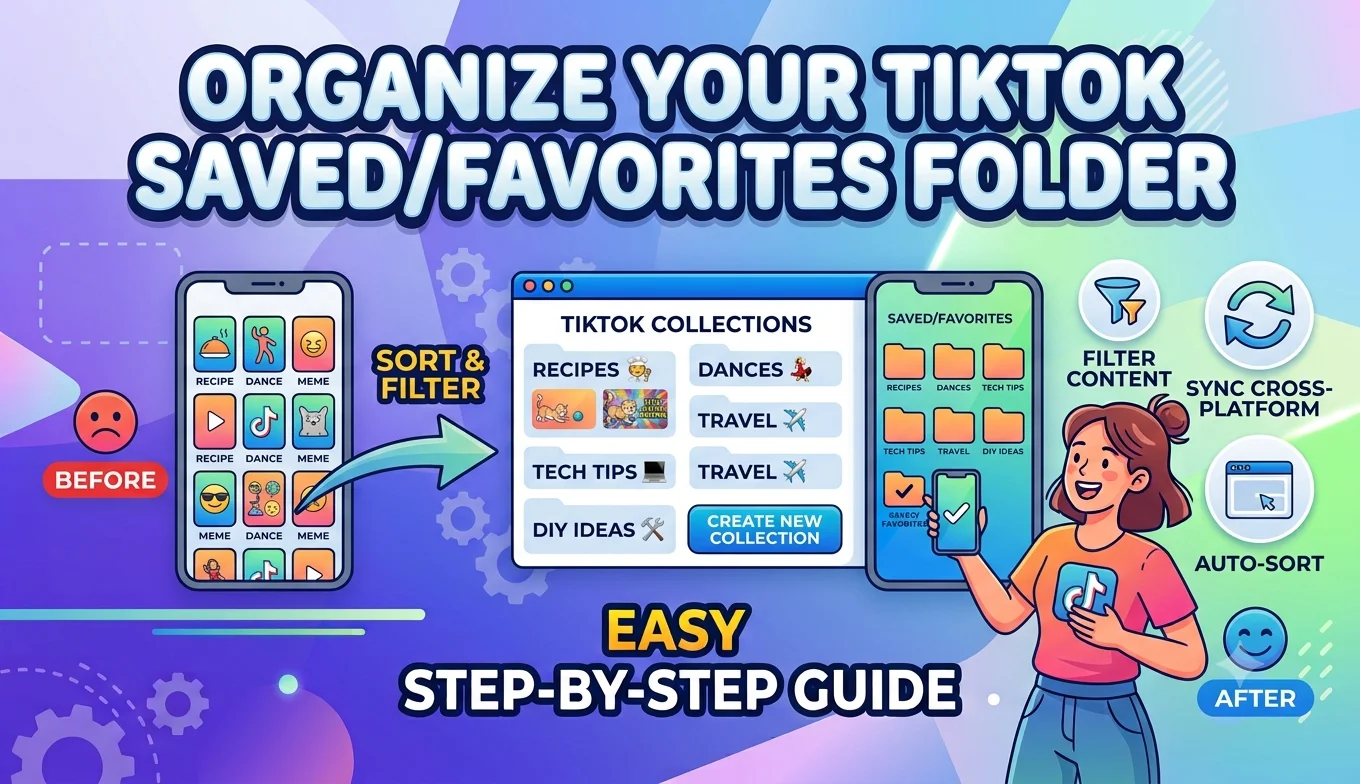
The most effective way to organize your TikTok Favorites is to use TikTok's built-in Collections feature, which lets you sort saved videos into named categories directly within the app, rather than leaving everything dumped into one long, unsorted Favorites list. Below are five ways to build a system that actually stays useful over time.
Why an Unsorted Favorites List Stops Working
TikTok's Favorites tab is easy to add to but, without any structure, becomes nearly impossible to search through after a few hundred saves. A recipe you saved in January ends up buried under six months of unrelated content, and finding it again means scrolling rather than searching. The methods below fix that by adding structure at the point of saving, rather than trying to sort everything retroactively.
1. Use TikTok's Built-In Collections
- Why an Unsorted Favorites List Stops Working
- 1. Use TikTok's Built-In Collections
- 2. Set Up Collections Before You Need Them
- 3. Download Your Own Videos Into Device Folders
- 4. Periodically Audit and Prune Old Saves
- 5. Use Naming Conventions That Make Sense to Future You
- Using Collections for Shopping and Product Research
- Sharing Collections With Others
- Combining Collections With Cross-Platform Organization
- What to Do When TikTok's Search Doesn't Find What You Saved
- Backing Up Your Favorites List
- What to Do If Your Collections Feature Isn't Available
- How Many Collections Is Too Many?
- Revisiting Your System as Your Interests Change
- Building a Habit Around Saving, Not Just Sorting
- Conclusion
TikTok lets you organize saved videos Save From into custom Collections instead of one flat Favorites list.
- Tap the bookmark/Favorite icon on a video to save it.
- Go to your profile and open the Favorites tab.
- Tap Collections, then Create new collection and name it something specific (e.g., "Dinner Recipes," "Workout Ideas," "Travel Spots").
- When saving future videos, choose which Collection to add them to directly from the save prompt.
This is the single most effective habit for keeping your saves usable long-term, since it does the sorting work at the moment you save rather than requiring a big cleanup later.
2. Set Up Collections Before You Need Them
Rather than creating Collections reactively as your Favorites list grows unwieldy, spend ten minutes setting up your main categories in advance based on how you actually use TikTok recipes, fitness, home projects, humor, work-related content, and so on. Having the structure ready means every new save takes one extra tap into an existing Collection instead of accumulating in the general list while you decide where it belongs.
3. Download Your Own Videos Into Device Folders
For videos you've saved to your camera roll (rather than kept as in-app Favorites), device-level photo organization matters too:
- Android: Most TikTok downloads land in a dedicated "TikTok" folder inside your gallery app. You can further organize by moving specific videos into custom albums.
- iPhone: Saved TikToks go into your main Photos library by default. Create custom albums (Photos app > Albums > + > New Album) and manually sort saved TikTok videos into relevant categories the same way you would organize regular photos.
Keeping your in-app Collections and your device-level saved videos organized using a similar category system (even if the exact names don't match) makes it easier to find something regardless of which one you saved it to.
4. Periodically Audit and Prune Old Saves
A Favorites list or Collection only stays useful if it reflects what you'd actually want to revisit. Set a recurring reminder monthly or quarterly to go through your Collections and:
- Remove videos that are no longer relevant or that you've already used (a recipe you've made and don't need again, an idea you've since implemented).
- Check for videos that have been deleted or made private by the original creator, which sometimes remain in your Favorites as broken links.
- Merge overly narrow Collections that have only a handful of videos into a broader category, and split overly broad Collections that have become unwieldy.
5. Use Naming Conventions That Make Sense to Future You
A common organizing mistake is naming Collections too broadly ("Ideas," "Stuff") or too narrowly (a new Collection for every single video). A middle ground works best specific enough to be meaningful when you're trying to find something months later, broad enough that new relevant videos have an obvious home. Naming Collections around the actual decision you'll be making when you revisit them ("Weeknight Dinners" rather than just "Food") tends to hold up better over time than categories organized purely by topic.
Using Collections for Shopping and Product Research
TikTok Shop and product-review content has become a significant part of many users' Favorites lists. A dedicated Collection for products you're considering separate from general entertainment or inspiration saves makes it easier to compare options later without those videos getting lost among unrelated content. This is especially useful since product-focused videos tend to have a natural expiration point (once you've made a purchase decision), making them good candidates for the periodic pruning described below.
Recommended Articles
 TIKTOK
 TIKTOK
 TIKTOK
Sharing Collections With Others
Depending on your account settings, some Collections can be made visible to other users, turning your organized Favorites into a shareable resource useful for things like a curated list of local restaurant recommendations or a themed set of videos you want to pass along to a friend. If privacy matters for a particular Collection, double-check its visibility setting rather than assuming all Collections default to private, since this can vary based on account type and TikTok's current settings layout.
Combining Collections With Cross-Platform Organization
If you also save similar content from other platforms recipe videos on Instagram, tutorials on YouTube keeping a lightweight, platform-agnostic naming system (even just consistent Collection names across apps where each platform allows custom naming) makes it easier to remember where to look for a specific type of content, rather than needing to separately recall your organizational system for each individual app.
What to Do When TikTok's Search Doesn't Find What You Saved
TikTok's in-app search covers public content but doesn't always effectively search within your own saved Collections by keyword, especially older saves. This is exactly why proactive organization (Collections set up in advance, regular pruning) matters more than relying on search to bail you out later a well-structured Collection you can browse visually is often faster to navigate than trying to recall the right search term for a video you saved months ago.
Backing Up Your Favorites List
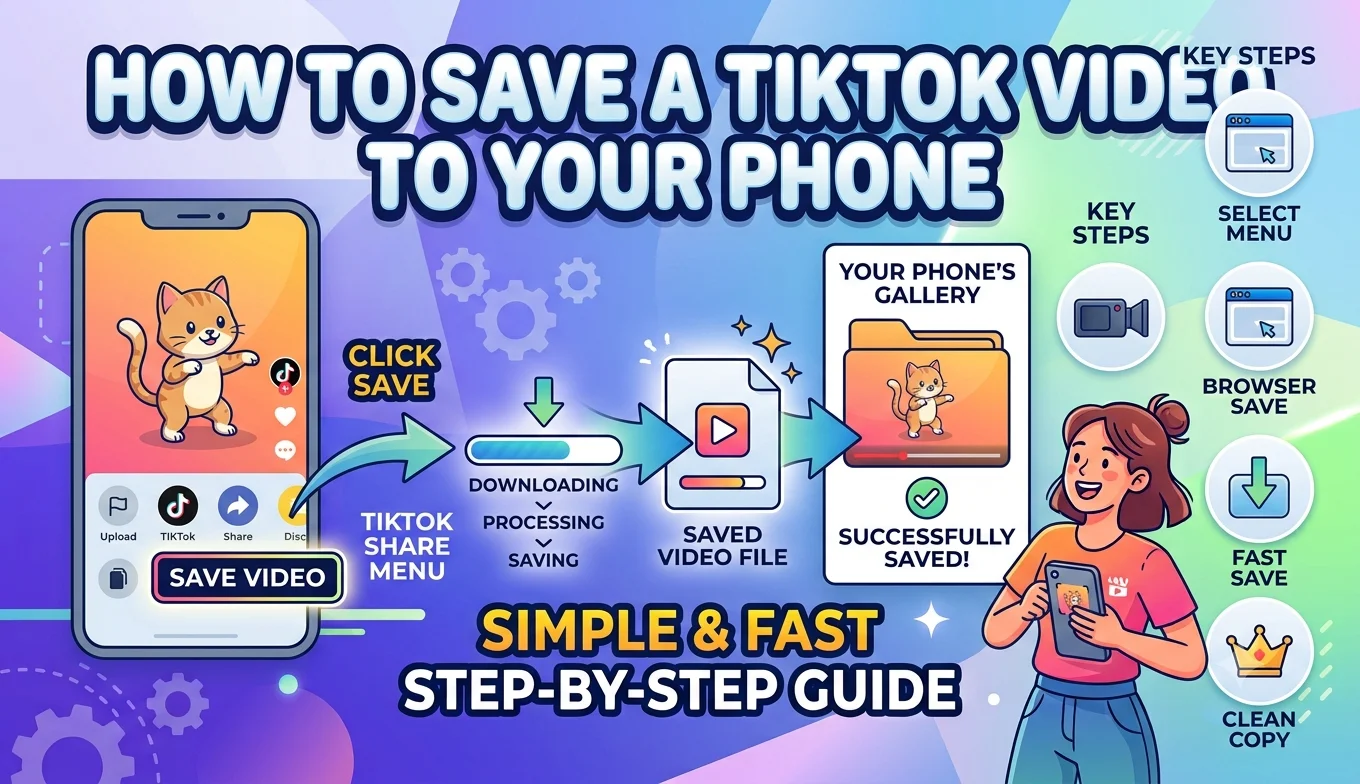
Unlike a full video download, your Favorites and Collections exist only within TikTok's own systems there's no built-in export tool that produces a portable file of your saved video list the way Google Takeout does for YouTube. If you rely heavily on Favorites for reference material (recipes, tutorials, ideas you plan to act on), consider periodically downloading the specific videos that matter most using the built-in Save option, so you have an independent copy that doesn't depend on staying logged into the same TikTok account indefinitely.
What to Do If Your Collections Feature Isn't Available
TikTok's Collections feature has rolled out gradually and isn't necessarily identical across every account or region. If you don't see a Collections option under your Favorites tab, check that your app is fully updated first, since older versions may not include the feature at all. In the rare case it's simply not yet available on your account, a manual workaround is keeping a separate notes file listing categories and which saved videos belong to each, so you're not starting from scratch once Collections does become available to you.
How Many Collections Is Too Many?
There's no fixed right number, but a useful gut-check is whether you can recall your Collection names without opening the app to check. Somewhere between five and fifteen well-defined Collections tends to work for most casual users — enough to meaningfully separate different interests, but few enough that choosing where to save something doesn't itself become a chore. If you find yourself regularly unsure which Collection a video belongs in, that's usually a sign two categories have started overlapping and could be merged.
Revisiting Your System as Your Interests Change
The categories that make sense today won't necessarily fit a year from now interests shift, and a Collection that once made sense (say, "Wedding Planning") may become irrelevant once its purpose has passed. Treat your Collection structure as something to revisit occasionally rather than a fixed system you set up once and never touch again; a quick rename, merge, or archive of outdated Collections keeps the whole setup feeling current instead of like a record of interests you've since moved past.
Building a Habit Around Saving, Not Just Sorting
The organizing methods above only pay off if saving becomes a slightly more deliberate action than a reflexive tap of the bookmark icon. Pausing for a half-second to choose (or quickly create) the right Collection when you save something takes barely longer than saving to a flat list, but it's the difference between a Favorites tab that stays genuinely useful for years and one that quietly becomes unusable clutter within a few months.
Conclusion
An organized TikTok Favorites setup comes down to using Collections deliberately rather than letting everything pile into one list, pairing that with a matching structure for any videos you've separately downloaded to your device, and revisiting the whole system periodically to prune what's no longer useful. None of this requires anything beyond TikTok's own built-in tools just a bit of upfront structure that pays off every time you actually need to find something you saved, and a willingness to adjust that structure as your interests change over time.