Instagram Save Button Missing? Here's the Fix
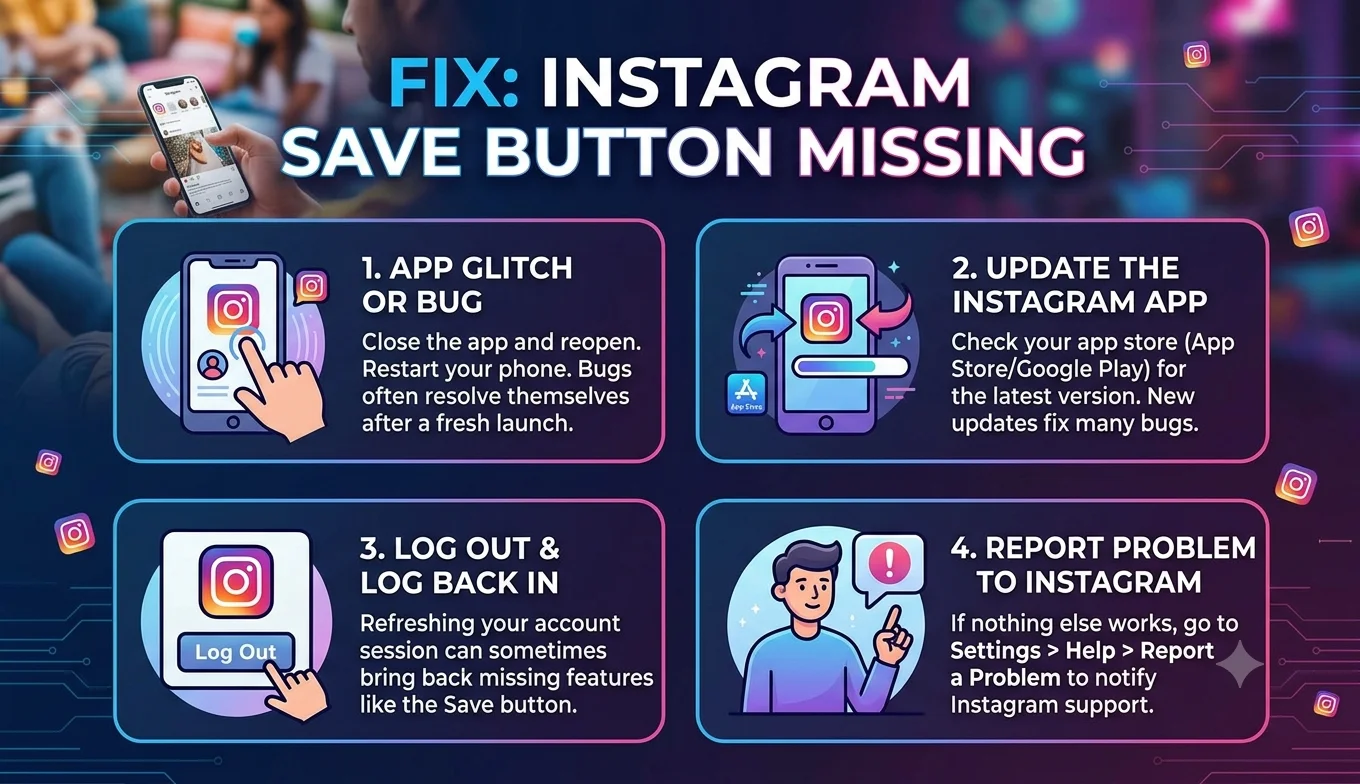
A missing Instagram Save (bookmark) button is almost always caused by an outdated app, a temporary Instagram bug, the poster having disabled saving on that specific post, or a restricted/business account setting — not a problem with your device itself. Working through the checks below resolves the vast majority of cases.
Why This Happens More Often Than You'd Expect
The Save button is one of the most frequently updated icons in Instagram's interface, since it's tied to the Saved Posts on Save From redesign, collections, and various testing rollouts the platform runs throughout the year. That makes it more prone to temporary glitches than more stable elements like the heart (like) icon, which is part of why "Save button missing" is such a common search it's rarely a single, permanent bug, but rather one of several possible causes that each need a slightly different fix.
1. The Poster Has Disabled Saving
- Why This Happens More Often Than You'd Expect
- 1. The Poster Has Disabled Saving
- 2. Your App Is Outdated
- 3. You're Using Instagram in a Browser
- 4. A Temporary Instagram-Wide Bug
- 5. App Cache Issues
- 6. Restricted or Limited Account Mode
- 7. Regional Feature Rollouts
- 8. Network or Connection Issues
- 9. VPN or Proxy Interference
- 10. Testing on a Different Account or Device
- A Quick Diagnostic Order to Follow
- When to Contact Instagram Support Directly
- A Note on Third-Party "Fix" Tools
- Does Device Age or Operating System Version Matter?
- When None of These Fixes Work
- Preventing This Issue in the Future
- Conclusion
Some accounts, especially business or creator accounts, can disable the Save option on individual posts to control how their content is redistributed.
Fix: There's no workaround for this if the creator has turned off saving, the bookmark icon simply won't appear on that post, by design. Check a different post from the same account, or a post from a different account entirely, to confirm whether the issue is specific to that one post or affects everything you view.
2. Your App Is Outdated
An old app version is one of the most common causes of missing icons or unresponsive buttons across Instagram's interface.
Fix: Update Instagram from the Play Store or App Store, fully close and reopen the app, and check the post again. If your app is set to auto-update but hasn't updated in a while, manually check for updates rather than assuming it's current — some devices pause auto-updates when storage is low.
3. You're Using Instagram in a Browser
The Save/bookmark feature is fully supported on mobile, but its behavior in Instagram's desktop web version is more limited and can appear inconsistent.
Fix: For reliable saving, use the Instagram mobile app rather than a browser. If you specifically need to save something while on a desktop computer, consider using your phone momentarily instead of relying on the web version's more limited feature set.
4. A Temporary Instagram-Wide Bug
Instagram periodically has short outages or bugs affecting specific features, including Save, that aren't related to your account or device at all.
Fix: Check Instagram's official support account or a service-status site to see if others are reporting the same issue; if so, it typically resolves within a few hours without any action needed on your part. It's worth checking before spending time on device-level troubleshooting, since no amount of cache-clearing fixes a problem on Instagram's end.
5. App Cache Issues
A corrupted local cache can cause icons like Save, Like, or Share to stop responding even though the app otherwise works fine.
Fix (Android): Go to Settings > Apps > Instagram > Storage > Clear Cache (not Clear Data), then reopen the app. Fix (iPhone): iOS doesn't allow clearing app cache directly instead, offload the app (Settings > General > iPhone Storage > Instagram > Offload App) and reinstall it, which preserves your login and data while clearing local cache.
6. Restricted or Limited Account Mode
Accounts flagged for review, or those with certain content restrictions applied, can temporarily lose access to some interactive features, including saving.
Fix: Check your account status under Settings > Account Status to see if any restrictions are listed, and follow Instagram's in-app appeal process if something looks incorrect.
7. Regional Feature Rollouts
New or modified versions of the Save feature sometimes roll out gradually by region, meaning some users see a slightly different interface or temporarily missing icon during the transition period.
Fix: If nothing else resolves it and the app is fully updated, this may simply require waiting for the rollout to reach your account there's no manual fix on your end. Comparing notes with a friend on a different phone or region can help confirm whether this is the likely cause.
8. Network or Connection Issues
A weak or unstable internet connection can cause interactive buttons, including Save, to appear unresponsive or fail to register your tap, even though the icon itself is visibly present.
Recommended Articles
 INSTAGRAM
 INSTAGRAM
 INSTAGRAM
Fix: Switch between Wi-Fi and mobile data to see if the issue persists across both, and try toggling airplane mode on and off briefly to reset your connection before retrying.
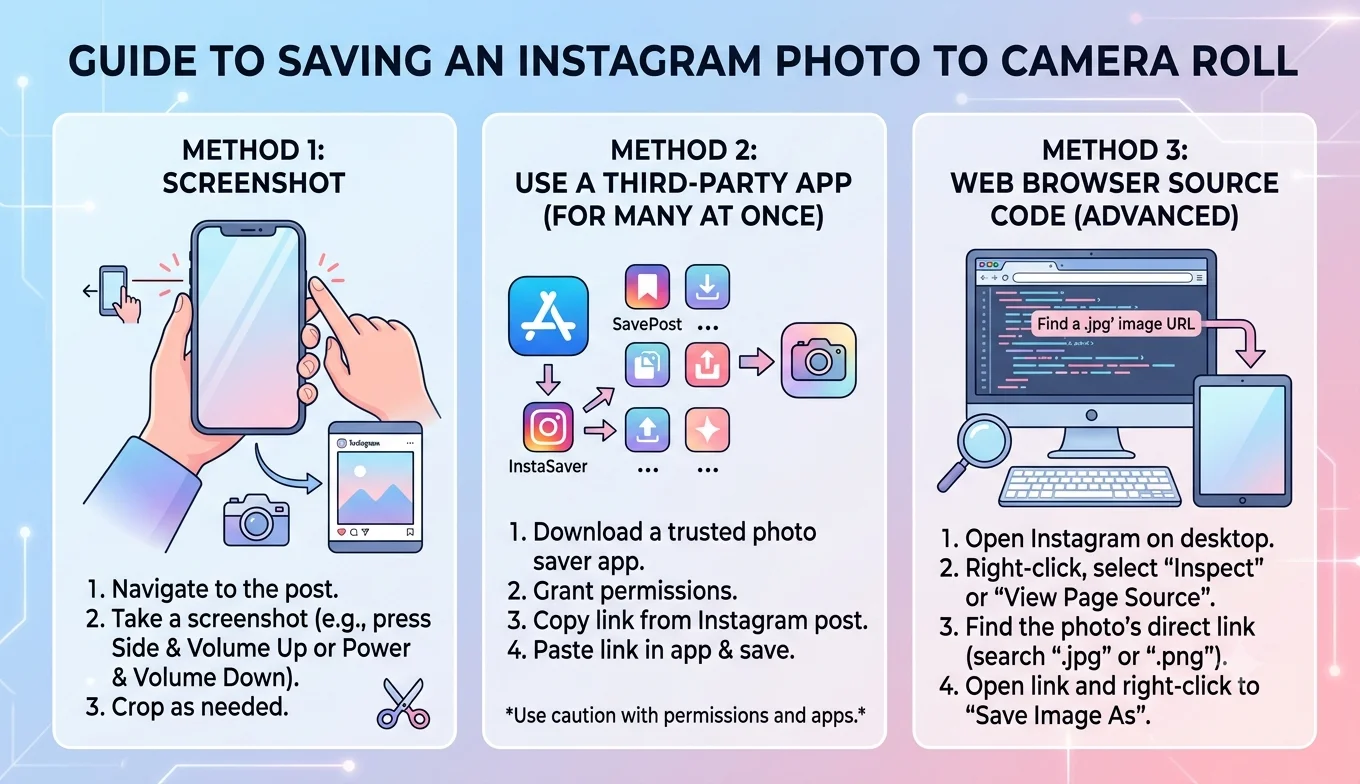
- How to Save an Instagram Photo to Your Camera Roll
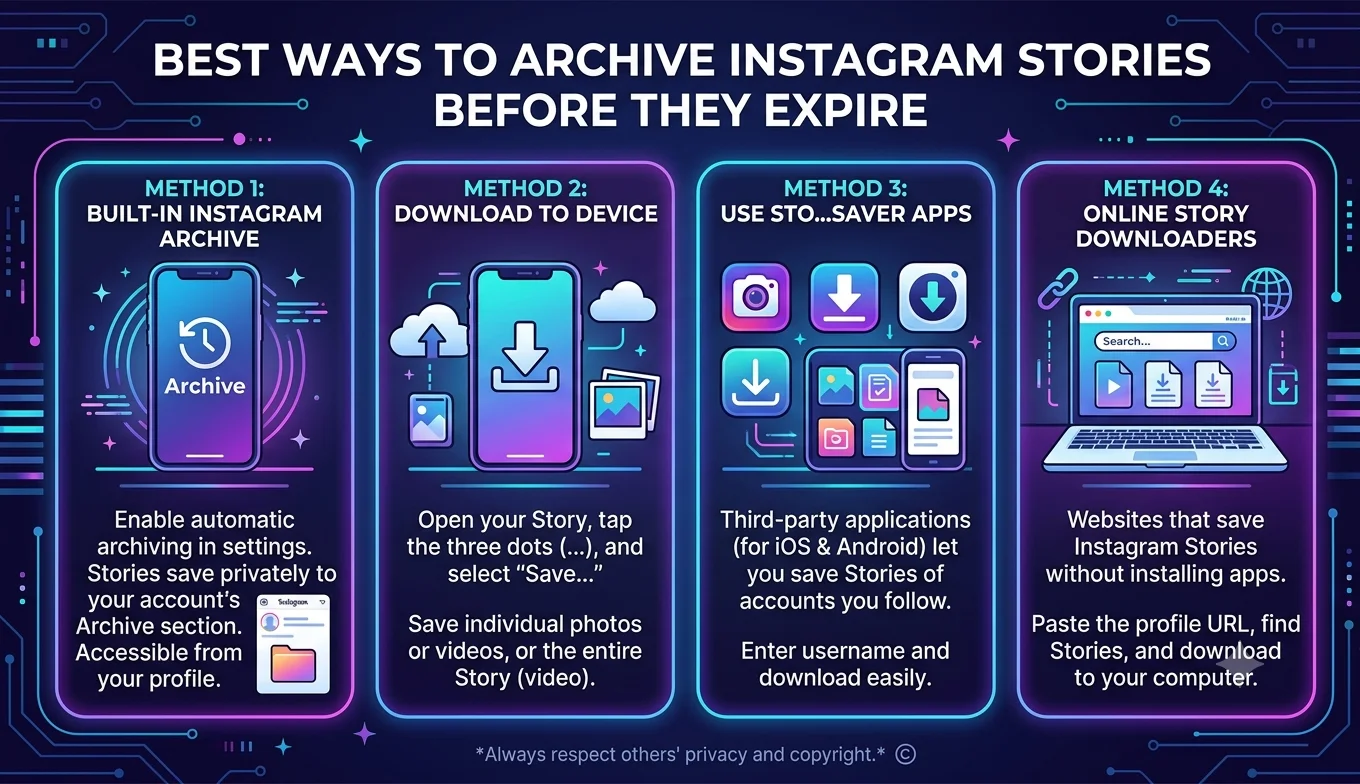
- Best Ways to Archive Instagram Stories Before They Expire
9. VPN or Proxy Interference
Using a VPN, especially one that routes traffic through a different country than your actual location, can occasionally cause Instagram to serve a different version of the interface, including feature availability differences tied to regional rollouts.
Fix: Temporarily disable your VPN and check whether the Save button appears normally. If it does, the VPN's server location is likely the cause, and switching to a server location closer to your actual region may resolve it.
10. Testing on a Different Account or Device
If you've worked through the fixes above and the issue persists, isolating the variable helps identify whether it's account-specific or device-specific:
- Log into Instagram on a different device using the same account if the Save button works there, the issue is likely tied to your original device's app installation.
- Log into a different Instagram account on your usual device if the Save button works there, the issue may be specific to your account's status or settings rather than the app itself.
A Quick Diagnostic Order to Follow
- Confirm you're in the mobile app, not a browser.
- Update the app.
- Clear cache (Android) or offload and reinstall (iPhone).
- Check if the specific poster has saving disabled.
- Check your account status for restrictions.
- Disable any active VPN.
- Check for a wider Instagram outage.
- Test on a different device or account to isolate the cause.
When to Contact Instagram Support Directly
If you've worked through every step above over a few days and the Save button remains consistently missing across multiple posts, accounts you follow, and devices, it's reasonable to reach out through Instagram's in-app Help Center (Settings > Help > Report a Problem). Include specific details device model, app version, and which posts are affected since vague reports are harder for support teams to diagnose and typically take longer to resolve.
A Note on Third-Party "Fix" Tools
Searching for this issue sometimes surfaces browser extensions or apps claiming to "restore" or "unlock" the Save button. These aren't official fixes and typically work by injecting unofficial code into Instagram's interface, which violates Instagram's Terms of Service and can put your account at risk of restriction, independent of whether the tool actually resolves the visual issue. None of the troubleshooting steps in this guide require anything beyond Instagram's own app and your device's built-in settings.
Does Device Age or Operating System Version Matter?
Very old devices running outdated operating systems can sometimes struggle to support the latest version of the Instagram app at all, which indirectly causes interface issues, including missing or unresponsive buttons, simply because the app can't fully function on unsupported software. If you're on a phone that's several years old and haven't updated its operating system in a while, checking for available OS updates alongside the app update is worth doing, since Instagram periodically drops support for very old OS versions entirely.
When None of These Fixes Work
If you've worked through every check above updated app, cleared cache, disabled VPN, confirmed it's not a wider outage but the Save button still fails to appear or respond, it's worth checking whether the same issue affects other interactive icons Like, Comment, Share on the same posts. If it does, the problem is likely broader than the Save feature specifically, pointing toward a deeper app or connectivity issue rather than something isolated to bookmarking.
Preventing This Issue in the Future
A few ongoing habits reduce how often you run into a missing Save button:
- Keep auto-update enabled for the Instagram app whenever possible, so you're rarely running a version more than a few weeks old.
- Restart your phone periodically, which clears minor background glitches that can accumulate across many apps, not just Instagram.
- If you regularly use a VPN, keep a mental note of which server location you're connected to, so you can quickly rule it out as a cause if something in the app behaves unexpectedly.
Conclusion
A missing Save button is rarely a sign of anything seriously wrong it's usually an outdated app, a creator-level setting, a network hiccup, or a short-lived platform bug. Working through the checklist above in order, from the most common causes to the more situational ones like VPN interference, will resolve almost every case without needing to contact Instagram support directly.