Best Ways to Archive Instagram Stories Before They Expire
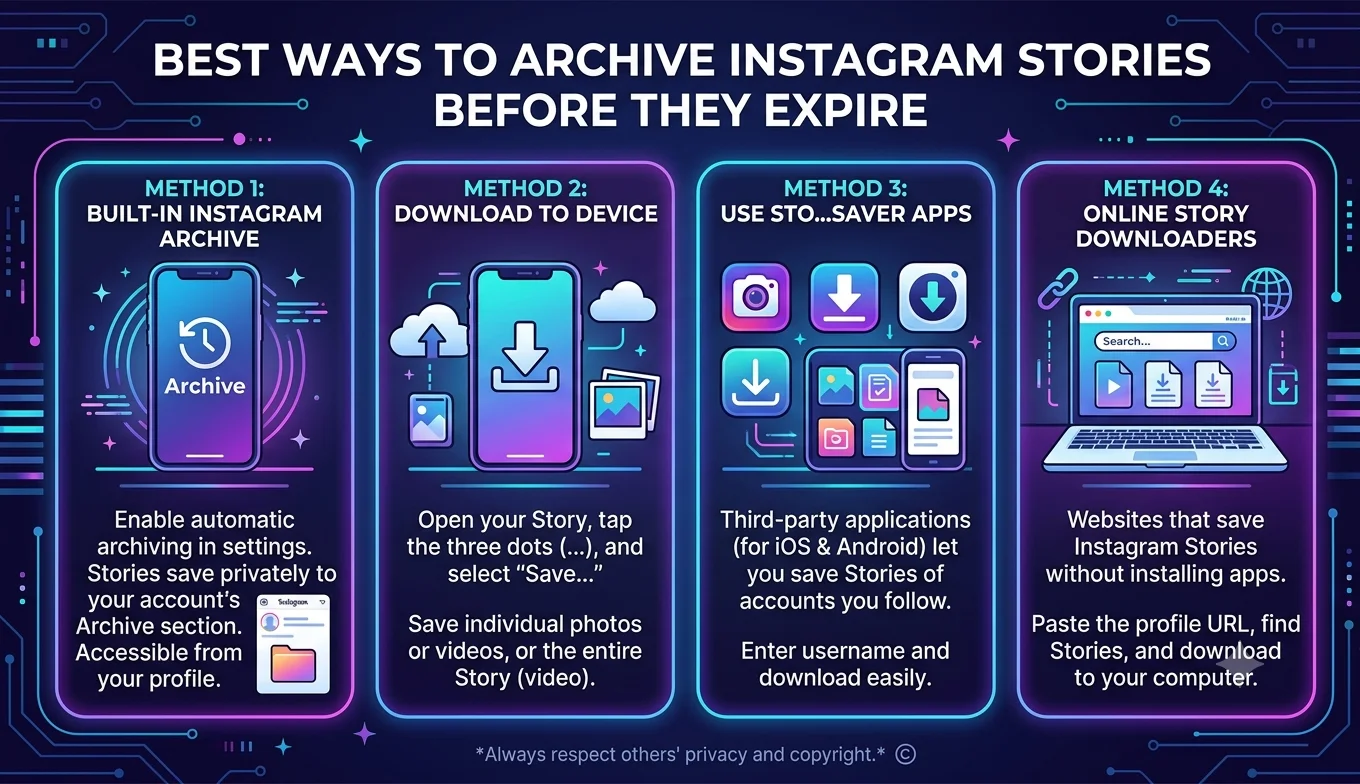
The most reliable way to keep an Instagram Story permanently is to turn on Auto-Archive in your settings, which saves every Story you post to a private archive only you can see, even after it disappears from your public profile. Below are seven ways to build a complete, permanent Stories backup, plus how to think about organizing everything long-term.
Why Stories Disappear in the First Place
Stories were designed as a temporary, lower-pressure format compared to permanent feed posts content meant to feel casual and in-the-moment rather than curated forever. That design choice is exactly why so many people search for ways to preserve them: a 24-hour expiration is great for reducing posting anxiety, but it also means genuinely useful or meaningful Stories can vanish before you've had a chance to properly save them if you're not using Instagram's built-in preservation tools.
1. Turn On Auto-Archive
- Why Stories Disappear in the First Place
- 1. Turn On Auto-Archive
- 2. Convert Key Stories Into Highlights
- 3. Manually Save Stories to Your Camera Roll
- 4. Download Your Full Story History via Data Download
- 5. Preserve Interactive Stickers and Elements
- 6. Organize Archived Stories by Date or Theme
- 7. Set a Recurring Reminder to Review and Save
- Archiving Close Friends Stories
- Managing Storage as Your Archive Grows
- A Final Word on Platform Dependence
- Comparing the Methods at a Glance
- Archiving Stories From a Business Perspective
- Conclusion
Go to Settings > Account (or Story) > Archiving and Downloading and make sure Save to Archive is toggled on. With this enabled, every Story you post is automatically saved to your private Archive the moment it goes live no manual action needed per Story. This is the single most important setting for anyone who wants a permanent, effortless Stories backup, since it protects everything by default rather than requiring you to remember to archive individual posts.
2. Convert Key Stories Into Highlights
Highlights keep specific Stories visible on your profile indefinitely, organized into named categories.
- Open your Archive (or the Story itself right after posting).
- Tap Highlight, choose an existing category or create a new one.
- The Story now displays permanently under your profile's Highlights section.
This is best for Stories you want visible to visitors, not just archived privately. Well-organized Highlights also double as a kind of public-facing table of contents for your profile many creators and business accounts use categories like "FAQ," "Reviews," or "Behind the Scenes" so visitors can find relevant saved content without scrolling through your whole feed.
3. Manually Save Stories to Your Camera Roll
For a copy stored outside Instagram entirely Save From:
- Open the Story from your Archive or profile.
- Tap the three-dot menu.
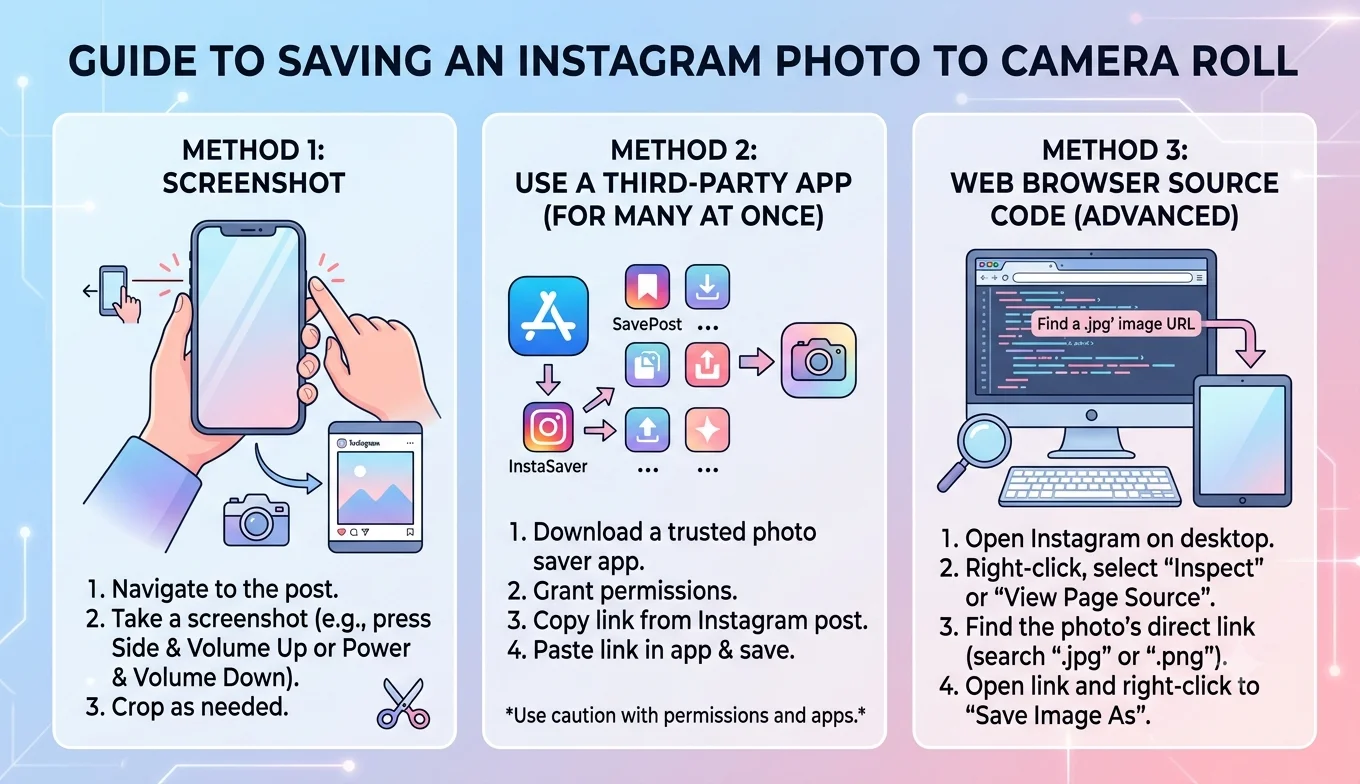
- Select Save the file downloads directly to your camera roll.
This is the only method that gives you an independent file, useful if you ever want to repost the same content elsewhere or keep a true off-platform backup. Unlike Auto-Archive or Highlights, a camera-roll save survives even if you ever lose access to your Instagram account entirely, which makes it worth doing for Stories with genuine sentimental or business value.
4. Download Your Full Story History via Data Download
For a bulk export rather than saving Stories one at a time:
- Go to Settings > Accounts Center > Your Information and Permissions > Download Your Information.
- Request a download that includes Stories.
- Instagram compiles an archive file (delivered within a few days) containing your Stories along with other account data.
This is the closest equivalent to a full backup and is especially useful before deactivating or deleting an account. It's also the most practical option if you have years of Stories accumulated and want everything in one place rather than manually going through your Archive Story by Story.
5. Preserve Interactive Stickers and Elements
Stories often include polls, questions, countdowns, or music stickers that add context beyond the base image or video. When you save a Story to your camera roll, these interactive elements are typically flattened into the final image or video as they appeared at the moment of capture meaning the visual sticker is preserved, but the underlying interactive functionality (like a live poll people can still vote on) is not, since that only exists while the Story is active. If preserving the exact results or responses matters (for example, a poll's final vote split), take a screenshot of the results before the Story expires, in addition to your regular Story save.
6. Organize Archived Stories by Date or Theme
Once Auto-Archive is on, your Archive tab lets you scroll chronologically, but it doesn't offer built-in folders. To keep things organized long-term, periodically convert themed Stories into dedicated Highlight categories (travel, behind-the-scenes, product launches) so your permanent, browsable record stays structured rather than becoming one long undifferentiated scroll. For business or creator accounts, grouping by campaign or season (e.g., "Spring 2026 Launch") makes it far easier to reference past content when planning future posts.
Recommended Articles
 INSTAGRAM
 INSTAGRAM
 INSTAGRAM
7. Set a Recurring Reminder to Review and Save
Since Auto-Archive only protects Stories within Instagram itself (not as independent files), set a recurring monthly or quarterly reminder to review your Archive and manually save anything you'd want as a standalone file to your camera roll or a cloud backup, in case you ever lose access to your account. This is especially important for business accounts, where Stories often double as a record of promotions, announcements, or customer interactions that may have value well beyond their original 24-hour lifespan.
Archiving Close Friends Stories
Stories shared to your Close Friends list follow the same Archive and saving rules as regular Stories they're preserved in your private Archive automatically if Auto-Archive is enabled, and can be saved to your camera roll the same way. The audience restriction (who could originally see it) doesn't carry over to the saved file itself, so treat camera-roll-saved Close Friends content with the same care you'd give any personal or semi-private material when deciding where to store or share it afterward.
Managing Storage as Your Archive Grows
Years of daily Stories can add up to a substantial amount of storage inside Instagram's Archive and, if you're regularly saving to your camera roll as well, on your device. A few habits help keep this manageable:
- Periodically export older Archive content via Download Your Information, then consider whether you still need every individual Story kept both in-app and on-device.
- Use Highlights selectively for content with lasting value, rather than converting every single Story, to keep your profile's permanent showcase focused and useful.
- If device storage becomes an issue, move camera-roll-saved Stories to cloud storage (Google Photos, iCloud) and clear the originals from your phone once safely backed up elsewhere.
This kind of periodic cleanup also makes any future full-account export faster and more manageable, since Download Your Information has to process everything included in the request a leaner, better-organized Archive generally produces a quicker turnaround than one that has accumulated years of unreviewed content.
A Final Word on Platform Dependence
Even with Auto-Archive, Highlights, and regular camera-roll saves in place, it's worth remembering that the first three methods still depend on Instagram itself staying accessible to you. Account compromises, policy violations (even accidental ones), or simple lockouts can all interrupt access temporarily or permanently. For Stories with real long-term value not just casual daily posts periodically exporting to an independent file through camera-roll saves or Download Your Information is the only method that fully removes that dependency.
Comparing the Methods at a Glance
Each preservation method serves a slightly different purpose, and most people end up using several together rather than relying on just one:
- Auto-Archive: effortless, automatic, but keeps content inside Instagram only.
- Highlights: best for content you want visible to profile visitors, not just privately preserved.
- Camera-roll saves: the only method that survives account loss entirely, since the file lives on your device.
- Download Your Information: the most complete option, ideal for a full backup rather than ongoing daily use.
Thinking of these as layers rather than alternatives automatic protection first, selective public display second, and independent file backups for anything irreplaceable covers nearly every situation a regular user or business account is likely to run into.
Archiving Stories From a Business Perspective
For business and creator accounts, Stories often carry more than sentimental value they document promotions, announcements, and customer interactions that can matter for record-keeping, disputes, or simply understanding what messaging performed well historically. Beyond the personal methods above, it's worth keeping a lightweight separate log (a spreadsheet or notes file) tracking major campaign Stories by date and topic, since Instagram's own Archive doesn't offer tagging or search by content type only chronological scrolling.
Conclusion
Between Auto-Archive, Highlights, manual camera-roll saves, and a full data download, you have several layered options each suited to a different purpose, from casual in-app access to a true independent backup. Turning on Auto-Archive is the essential first step, since it's the only one that protects every single Story automatically without requiring you to remember anything in the moment, while the remaining methods let you build a more deliberate, organized archive over time.