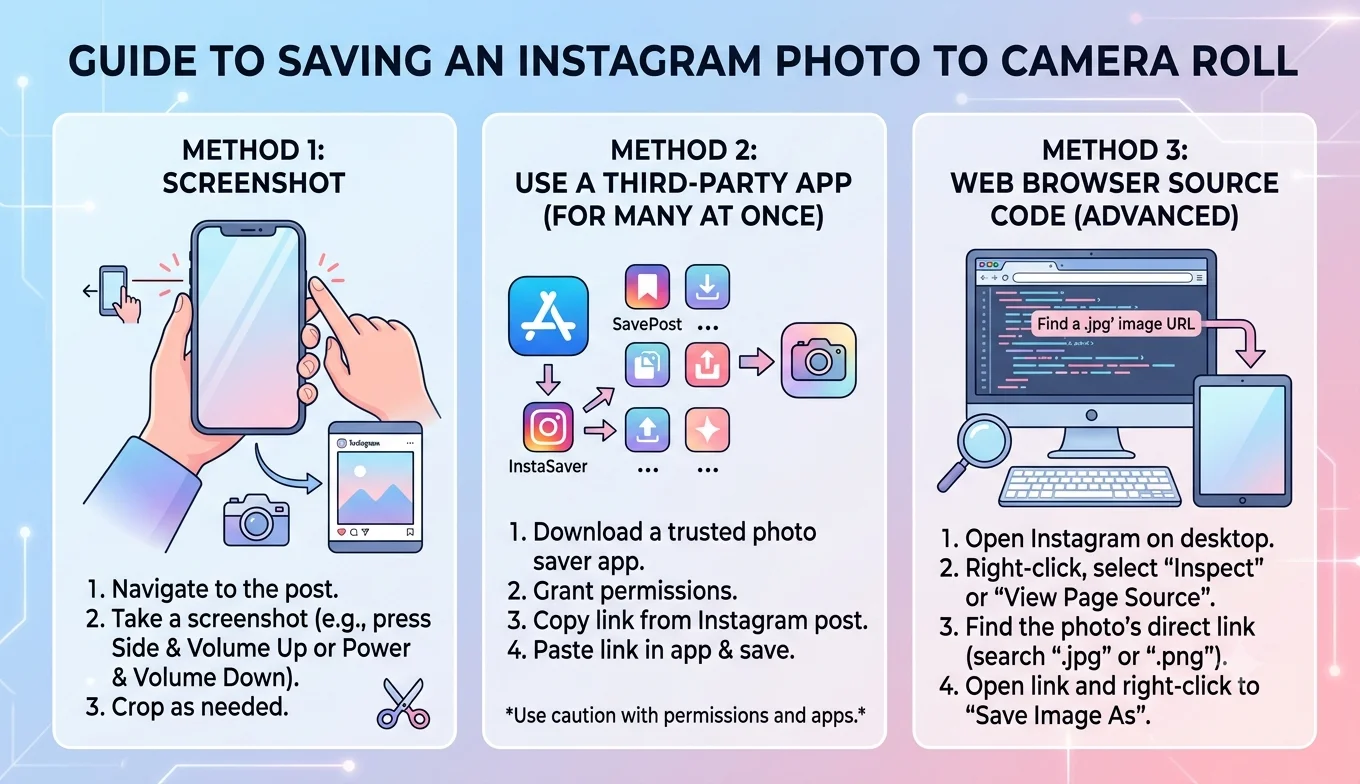
How to Save an Instagram Photo to Your Camera Roll
Instagram lets you save your own posts directly to your camera roll using the three-dot menu on any of your photos, and this is the only officially sanctioned way to download a post's original-quality image straight to your device. For posts you don't own, Instagram's built-in Save (bookmark) feature keeps them inside the app rather than your camera roll, which is the intended, policy-compliant way to revisit someone else's content.
Saving Your Own Instagram Photos
- Open the Instagram app and go to your profile.
- Tap the post you want to save to your camera roll.
- Tap the three-dot menu (⋯) in the top-right corner of the post.
- Select "Save" — for your own posts, this option downloads the original file directly to your device's gallery.
- Check your camera roll or gallery app to confirm it saved successfully.
This works for both single photos and Reels Save From you've posted, since Instagram treats your own uploads as content you have full rights to download at any time.
Saving Your Own Carousel Posts (Multiple Photos)
- Saving Your Own Instagram Photos
- Saving Your Own Carousel Posts (Multiple Photos)
- Saving Reels You've Posted
- Bookmarking Posts You Don't Own
- Saving Your Own Stories Before They Expire
- Differences Between Personal, Creator, and Business Accounts
- Saving Photos You're Tagged In
- Doing a Bulk Export of All Your Own Photos
- Checking Photo Quality After Saving
- Why Instagram Restricts Downloading Others' Content
- What About Downloading Someone Else's Photo With Permission?
- Organizing What You Save Long-Term
- Saving Content Shared in Direct Messages
- Saving on a Tablet or iPad
- Conclusion
Carousel posts the ones with multiple swipeable photos or videos work slightly differently than single-image posts:
- Open your carousel post from your profile.
- Swipe to the specific photo or video you want to save.
- Tap the three-dot menu on that individual slide.
- Select Save only the slide currently visible downloads, not the entire carousel at once.
If you want every slide from a carousel, repeat this process for each one individually. There is currently no single "download all slides" button within a carousel post, so plan a few extra taps if you're archiving a multi-photo set.
Saving Reels You've Posted
Your own Reels can be downloaded the same way as photos, through the three-dot menu on the Reel itself. One detail worth knowing: Reels saved this way generally download at the same resolution they were uploaded in, not the potentially compressed version some viewers see during playback, so it's a reliable way to keep an unaltered copy of your original footage.
- Why Your YouTube Save Offline Button Is not Working
- How to Save a YouTube Video to Watch Offline
- 7 Legit Ways to Back Up Your YouTube Watch History
- Is It Legal to Download YouTube Videos
Bookmarking Posts You Don't Own
For posts made by other accounts, Instagram intentionally does not offer a "save to camera roll" option — this is a deliberate content-protection measure, not a missing feature. Instead:
- Tap the bookmark icon below the post (next to the heart and comment icons).
- Organize saved posts into collections by tapping and holding the bookmark icon, then choosing or creating a collection.
- Access all saved posts anytime from your profile's Saved section (menu icon > Saved).
This keeps the post accessible to you indefinitely inside Instagram without downloading a file the creator didn't authorize you to have.
Saving Your Own Stories Before They Expire
Stories disappear after 24 hours unless archived. To keep a copy:
- Post the Story as usual.
- Instagram automatically saves it to your Archive (unless you've turned this off in settings).
- To also save it to your camera roll, open the Story from your profile, tap the three-dot menu, and select Save.
Differences Between Personal, Creator, and Business Accounts
The core saving mechanics three-dot menu for your own posts, bookmark icon for others' work the same way across account types. A few small differences are worth knowing:
- Business and Creator accounts sometimes get an additional "Save to Insights" or export option tied to performance data, letting you download a post alongside basic engagement numbers.
- Business accounts occasionally have the option to disable saving on their own posts for other users (the bookmark icon disappears for viewers), which is a setting business owners may enable for promotional or exclusivity reasons.
- Personal accounts have the simplest, most consistent access to both saving methods with no additional restrictions layered on top.
Saving Photos You're Tagged In
If you're tagged in someone else's photo and want a personal copy, the same rule applies as any other post you don't own: there's no direct camera-roll download option, and the appropriate route is either bookmarking it for in-app access or asking the poster to send you the original file directly. Downloading tagged photos through unofficial extraction tools carries the same policy risk as downloading any other content you don't have explicit rights to.
Recommended Articles
 INSTAGRAM
 INSTAGRAM
 INSTAGRAM
Doing a Bulk Export of All Your Own Photos
If you want every photo you've ever posted, rather than saving them one at a time, Instagram's Download Your Information tool is the better route:
- Go to Settings > Accounts Center > Your Information and Permissions > Download Your Information.
- Select the data types you want (photos, videos, Stories, and more).
- Choose a format and date range, then submit the request.
- Instagram compiles the archive and notifies you (usually within a few hours to a couple of days) when it's ready to download.
This is the most efficient method if you're switching devices, doing an account backup before deleting or deactivating, or simply want a complete personal archive in one file rather than manually saving hundreds of individual posts.
Checking Photo Quality After Saving
Occasionally, a saved photo appears slightly compressed compared to what you remember posting. This is usually tied to your device's photo-saving settings or a temporarily weak connection during the save process, rather than Instagram intentionally degrading quality. If a saved image looks noticeably softer than expected:
- Confirm you have a strong Wi-Fi connection and retry the save.
- Check your phone's photo app settings for any automatic compression applied on import.
- For carousels or Reels, re-save the specific slide individually rather than assuming a bulk save captured full resolution.
Why Instagram Restricts Downloading Others' Content
Instagram's Terms of Use are built around protecting creators' rights over their own images and videos. Allowing anyone to freely download any post to their camera roll would make it trivial to reuse or redistribute content without permission or credit, which is why the download-to-camera-roll option is limited to your own uploads, while the Save/bookmark feature is offered as the sanctioned way to revisit other people's posts.
What About Downloading Someone Else's Photo With Permission?
If a creator gives you direct permission to save and use their photo, the safest approach is asking them to send you the original file directly (via DM, email, or file-sharing link) rather than using a third-party "Instagram downloader" tool, which typically violates Instagram's Terms of Service regardless of whether the underlying use is authorized. A direct file transfer also tends to preserve the highest possible quality, since it isn't subject to any re-compression that can happen when content passes through an external extraction service.
Organizing What You Save Long-Term
Once you're regularly using both camera-roll saves (for your own content) and bookmarks (for others'), a simple system helps avoid clutter:
- Use device photo albums or folders to separate your own downloaded posts by year or project.
- Use Instagram's Saved collections to group bookmarked content by theme recipes, workouts, design inspiration, and so on.
- Periodically review both to remove anything no longer relevant, keeping your archive genuinely useful rather than an ever-growing, unsorted pile.
A useful habit is setting a recurring reminder every few months to go through both your camera roll's Instagram-saved folder and your in-app Saved collections together, since the two tend to grow at different rates and can otherwise drift out of sync your camera roll filling with your own old posts while your bookmarks pile up with content you meant to revisit but never organized properly.
Saving Content Shared in Direct Messages
Photos and videos sent to you in Instagram DMs can also be saved to your camera roll, though the option depends on whether the sender has allowed it Instagram gives senders some control over whether recipients can save disappearing photos and videos sent through chat. When saving is allowed, tap and hold the media in the conversation and look for a save option, or use the three-dot menu if viewing it full-screen. If no save option appears, the sender has likely restricted it, similar to how post owners can restrict the Save button on regular posts.
Saving on a Tablet or iPad
The same three-dot menu and bookmark icon appear when using the Instagram app on a tablet, so the process itself doesn't change. The main practical difference is screen real estate larger carousels and grid views make it easier to spot the specific slide or post you want to save without as much scrolling, which is useful if you're doing a larger organizing session rather than a quick single save.
Conclusion
Instagram gives you exactly two officially supported ways to hold onto content: downloading your own posts directly to your camera roll, and bookmarking other people's posts to revisit inside the app. Between individual saves, carousel-slide saves, and the full Download Your Information export, these built-in tools cover nearly everything most users need and none of them require installing a third-party app or risking your account standing to get there.