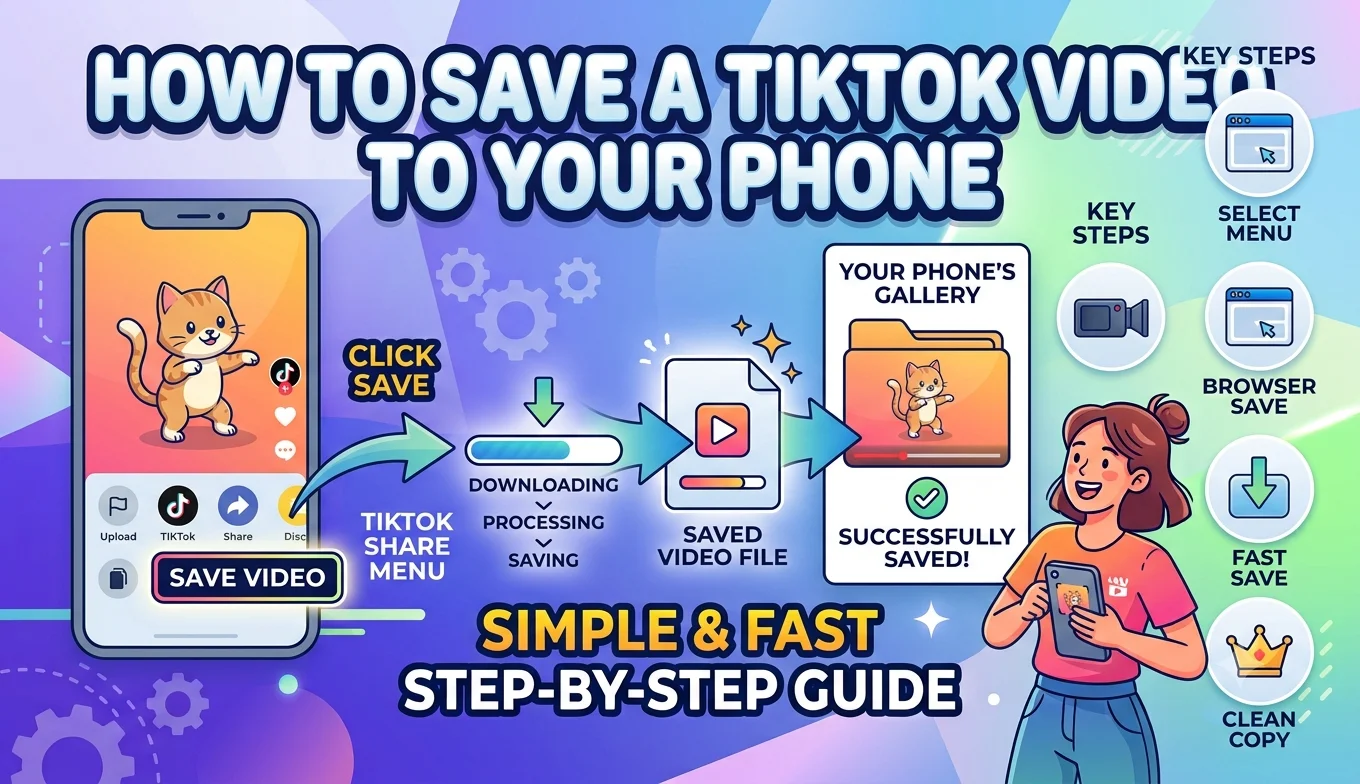
How to Save a TikTok Video to Your Phone (Built-In Method)
TikTok has a built-in Save video option in its native Share menu that downloads a video directly to your phone's gallery, available on any video where the creator has allowed downloads. This is the only method that stays within TikTok's Terms of Service and doesn't expose your device to the security risks that come with third-party downloader tools.
Why Use TikTok's Built-In Save Feature
Search "TikTok downloader" and you'll find dozens of websites and apps promising instant, watermark-free downloads. Before reaching for one, it's worth understanding what you're trading for that convenience:
- Account safety: using unapproved third-party apps to pull TikTok content violates TikTok's Terms of Service and can result in account suspension.
- Device security: third-party apps and browser-based downloaders Save From often request broad permissions and can expose you to malware or phishing risks that don't exist with TikTok's own feature.
- Data privacy: many downloader tools require you to paste a link into an external site, which means that traffic (and sometimes account information) is passing through a service with no obligation to protect it.
- Reliability: because it's built into the app itself, the official Save option keeps working through TikTok's regular updates instead of breaking every time the platform changes its site structure.
- How Instagram 2026 Update Changed Content Saving
How to Save a TikTok Video (Step-by-Step)
- Why Use TikTok's Built-In Save Feature
- How to Save a TikTok Video (Step-by-Step)
- Why the Save Option Doesn't Appear on Some Videos
- Saving Videos With or Without the Watermark
- Saving Your Own TikTok Videos
- Saving Videos From TikTok Live Replays
- Understanding TikTok's Video Compression on Saved Files
- Batch-Saving Multiple Videos
- Saving Videos to a Specific Folder
- Downloading TikTok Videos on a Tablet
- What Happens If You Try to Save a Video Without Permission Enabled
- Using Screen Recording as an Alternative (With Caveats)
- Storage Considerations for Saved TikToks
- Comparing TikTok's Approach to Other Platforms
- A Quick Checklist Before You Save
- Conclusion
- Open the TikTok app and find the video you want to save.
- Tap the Share icon the arrow icon on the right side of the video, below the comment bubble.
- Look for "Save video" in the row of sharing options that appears.
- Tap it the video downloads directly to your phone's camera roll or gallery app.
- Check your gallery to confirm the download completed; TikTok videos are usually saved into a dedicated "TikTok" or "Downloads" folder rather than mixed in with your regular photos.
Why the Save Option Doesn't Appear on Some Videos
Not every TikTok video can be saved this way. Creators have a setting under their own video's privacy controls that lets them disable downloads entirely. When that setting is on, the "Save video" option simply won't appear in the Share menu for that video this is intentional, not a bug, and there's no in-app workaround for it.
- How to Save an Instagram Photo to Your Camera Roll
- Best Ways to Archive Instagram Stories Before They Expire
Saving Videos With or Without the Watermark
TikTok's built-in Save option downloads videos with the TikTok watermark and username overlay included by default this is part of how the platform ensures saved and reshared content is still attributed to its original creator. Some third-party tools advertise "no watermark" downloads as a selling point, but stripping the watermark also strips the attribution that identifies who made the video, which is part of why these tools sit in a legal and ethical gray area even when the download itself works technically. If you're saving a video purely for personal offline viewing, the watermark rarely matters; if you're considering reposting it elsewhere, keeping the watermark and crediting the original creator is the safer and more respectful approach regardless of which method you use.
Saving Your Own TikTok Videos
If the video is one you posted yourself, you have full control over saving it, since TikTok recognizes you as the content owner:
- Go to your profile and open the video.
- Tap the three-dot menu (or Share icon) on the video.
- Select Save video this works even if you've otherwise disabled downloads for other viewers, since the restriction applies to other users, not to you.
For a higher-quality version of your own video, some creators prefer exporting directly from their device's original recording (if saved locally before uploading) rather than the re-compressed version TikTok serves after processing.
Saving Videos From TikTok Live Replays
If you're trying to save a moment from a TikTok LIVE broadcast, the built-in Save video option generally doesn't apply the same way, since live content isn't structured as a standard uploaded video while it's streaming. Some creators post an edited replay or highlight clip after the broadcast ends, which can then be saved through the normal Share menu method like any other video. If no replay is posted, there's no officially sanctioned way to save the original live stream footage after the fact.
Recommended Articles
 TIKTOK
 TIKTOK
 TIKTOK
Understanding TikTok's Video Compression on Saved Files
Videos saved through the built-in Save option are generally downloaded at the same quality TikTok serves for regular playback, which already includes a level of compression applied during upload processing. This means a saved TikTok typically won't match the raw quality of the original file the creator recorded, even though it's the same file other viewers see when watching the video normally. For most casual saving purposes rewatching a recipe, referencing a tutorial this compression is unnoticeable, but it's worth knowing if you're expecting broadcast-quality footage from a saved download.
Batch-Saving Multiple Videos
TikTok's built-in Save option only works one video at a time there's no native "select multiple and save" feature within the app. If you regularly want to save many videos from the same creator or hashtag, the most efficient official approach is working through them individually via the Share menu, since any tool claiming to offer official-feeling batch downloads is, by definition, operating outside TikTok's own built-in feature set.
Saving Videos to a Specific Folder
By default, TikTok saves downloaded videos to your device's default camera roll or a TikTok-specific subfolder, depending on your phone's settings. On Android, you can often find these under a folder named "TikTok" inside your gallery app. On iPhone, saved TikToks appear in your main Photos app under Recents, mixed with your other photos and videos, unless you manually move them into a dedicated album afterward.
Downloading TikTok Videos on a Tablet
The Save video option works identically on tablets running the TikTok app the Share icon and "Save video" button appear in the same place. The main practical benefit of a tablet is easier browsing and organizing afterward, since the larger screen makes it simpler to review a batch of saved videos in your gallery app.
What Happens If You Try to Save a Video Without Permission Enabled
If a creator has disabled downloads and you attempt to save their video anyway using a third-party tool, you're not just working around a UI limitation you're bypassing a deliberate content-protection setting the creator chose. This carries the same Terms of Service and copyright concerns as downloading any other protected content without authorization, regardless of whether a workaround tool makes it technically possible.
Using Screen Recording as an Alternative (With Caveats)
Some users turn to their phone's built-in screen recording feature to capture a TikTok video when the Save option isn't available. While screen recording itself isn't against TikTok's rules the way a downloader tool might be, saving and reusing content this way still doesn't grant you rights to the underlying video the same copyright and permission considerations apply as they would to any other unauthorized copy, even though no external app was involved in making it.
Storage Considerations for Saved TikToks
TikTok videos are typically short, so individual file sizes are usually modest compared to longer-form video — but saving dozens or hundreds of videos over time adds up. Periodically reviewing your camera roll's TikTok folder and clearing videos you no longer need helps keep your device's storage in check, especially on phones with limited storage capacity.
Comparing TikTok's Approach to Other Platforms
Requiring creators to opt in (or explicitly disable) downloads, rather than defaulting to unrestricted saving, puts TikTok's approach roughly in line with how Instagram and YouTube handle similar tension between creator control and viewer convenience all three platforms give creators some say over whether their content can be saved outside the app, while offering their own built-in mechanism as the sanctioned path when saving is allowed.
A Quick Checklist Before You Save
- Confirm the Share icon shows "Save video" (not just a Share/Repost option).
- Make sure your app is updated to the latest version.
- Check available storage before saving multiple long videos in one session.
- Decide in advance whether you want the watermarked version (default) or need to handle attribution separately if reusing the content.
Conclusion
TikTok's built-in "Save video" option in the Share menu is the only method that keeps you fully compliant with the platform's rules while giving you a genuine, permanent copy of a video on your device. It works reliably, requires no extra apps, and avoids the malware, phishing, and account-risk concerns that come with third-party downloader tools making it the clear first choice whenever a video's Save option is available.