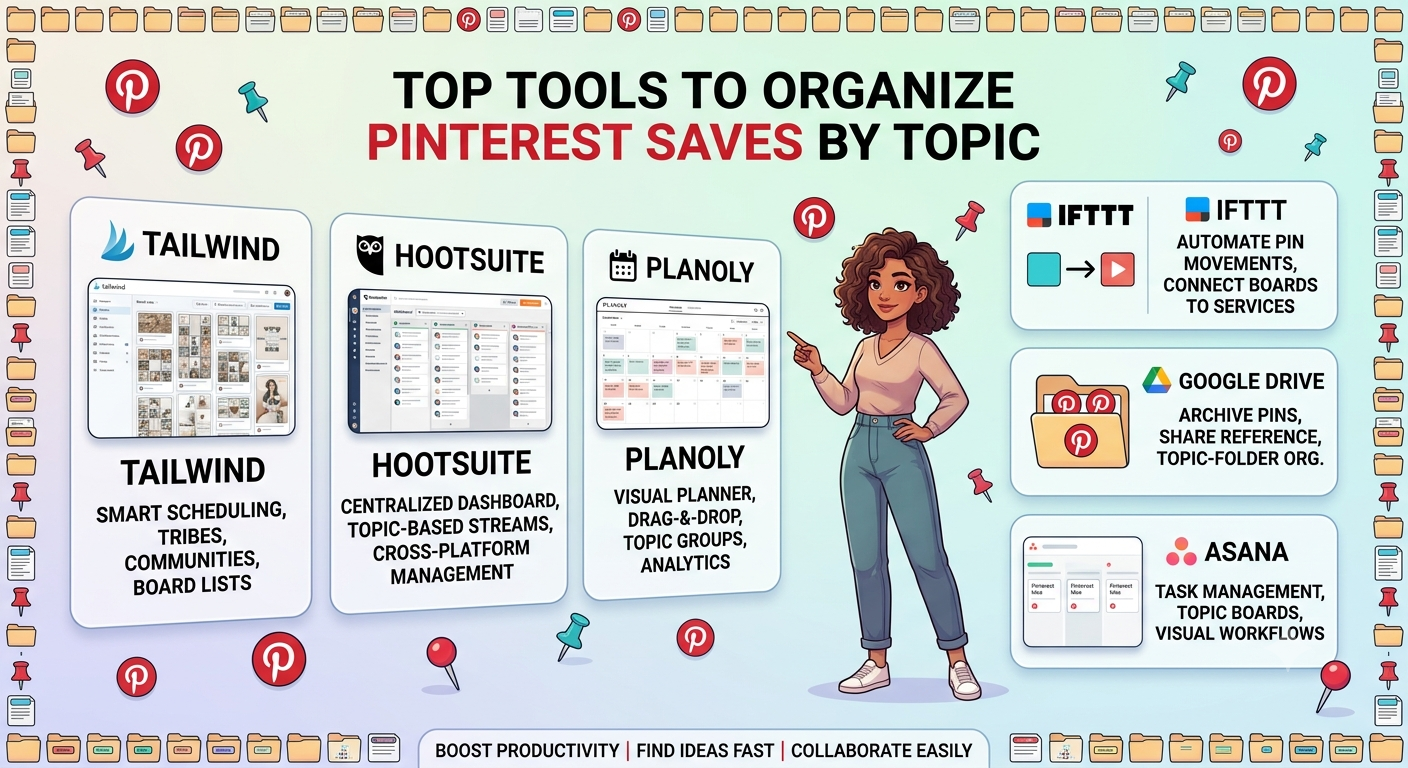
Top Tools to Organize Pinterest Saves by Topic
Pinterest's own built-in boards and sections are the most effective tools for organizing saves by topic, letting you create broad categories (boards) and narrower sub-categories within them (sections) without needing any third-party app. Below is how to build a system that stays usable as your saves grow into the hundreds or thousands.
Why Unorganized Pinterest Saves Become Unusable
Pinterest makes saving effortless a single tap adds a pin to a board which is exactly why saves pile up faster than most people organize them. A board with a few hundred unsorted pins covering a dozen unrelated topics becomes nearly impossible to browse effectively, even though every individual pin was saved with good intention at the time.
1. Use Boards as Broad Topic Categories
- Why Unorganized Pinterest Saves Become Unusable
- 1. Use Boards as Broad Topic Categories
- 2. Use Sections to Break Boards Into Sub-Topics
- 3. Use Consistent Naming Conventions
- 4. Use Board Covers to Visually Distinguish Topics
- 5. Periodically Audit and Merge Overlapping Boards
- 6. Use the Search-Within-Boards Feature for Large Collections
- 7. Keep a Lightweight External Index for Your Most-Used Boards
- 8. Separate Inspiration Boards From Action Boards
- 9. Use Group Boards Thoughtfully
- 10. Combine Pinterest's Organization With a Downloaded Backup
- Handling Boards With Hundreds of Existing, Unsorted Pins
- Organizing Saves Across Multiple Pinterest Accounts
- Using Pinterest's Recommendation Algorithm to Your Advantage
- Building the Habit, Not Just the Structure
- A Simple Monthly Organization Routine
- Conclusion
Boards are Pinterest's primary organizational unit, and treating each one as a genuinely distinct topic rather than a vague catch-all is the foundation of a usable system.
- Go to your profile and tap Create board.
- Name it specifically enough to be meaningful (e.g., "Weeknight Dinners" rather than just "Food").
- Set it to public or secret depending on whether you want it visible to others.
Well-defined boards from the start prevent the common problem of one enormous, mixed-topic board that's technically organized but not actually useful for finding anything specific.
- Are Third-Party TikTok Downloader Apps Safe to Use
- How to Download Your Own Google Photos Album
- Comparing Google Photos vs iCloud for Backups
2. Use Sections to Break Boards Into Sub-Topics
For boards that naturally cover a broad theme with several distinct sub-areas, Pinterest's Sections feature adds a second organizational layer within a single board.
- Open the board.
- Tap Create section (or the + icon, depending on your app version).
- Name the section and start moving relevant pins into it.
For example, a "Home Renovation" board might have sections for Kitchen, Bathroom, and Backyard keeping everything under one board while still letting you browse by sub-topic without scrolling through unrelated pins.
3. Use Consistent Naming Conventions
A simple but often-overlooked organizing tool is just naming boards and sections consistently deciding on a format (topic + specificity, like "Travel: Japan" or "Recipes: Breakfast") and sticking to it across your whole account. This makes your own board list easier to scan at a glance, and helps when searching your own boards later for something you vaguely remember saving.
4. Use Board Covers to Visually Distinguish Topics
Pinterest lets you set a custom cover image for each board, chosen from one of the pins already saved there. Taking a few minutes to set distinct, representative covers makes your board list easier to visually scan, especially once you have a dozen or more boards recognizing a board by its cover image is often faster than reading through a list of names.
- Best Practices for Backing Up Facebook Memories
- Facebook Save Option Not Showing Up
- Facebook Data Download Tool
5. Periodically Audit and Merge Overlapping Boards
As your interests shift over time, boards can end up overlapping or becoming redundant two boards that started as separate topics but have converged into essentially the same thing. Set a recurring reminder (quarterly works well for most people) to review your board list and merge anything that's become redundant, since Pinterest allows moving all pins from one board into another rather than needing to redo the organization from scratch.
6. Use the Search-Within-Boards Feature for Large Collections
For boards that have grown large despite your best organizing efforts, Pinterest's search function can filter results to a specific board, letting you find a specific pin by keyword without manually scrolling through everything. This is a useful supplement to sections, not a replacement sections help with browsing, while board-specific search helps with finding something specific you already have a rough idea about.
7. Keep a Lightweight External Index for Your Most-Used Boards
For boards you reference constantly recipes you actually cook from, or a wishlist you regularly revisit keeping a simple external note (a notes app list, a spreadsheet) with links to your most useful individual pins can be faster than navigating through Pinterest's own interface every time, particularly on mobile where switching between apps is quicker than scrolling through a large board.
Recommended Articles
 PINTEREST
 PINTEREST
 PINTEREST
8. Separate Inspiration Boards From Action Boards
A distinction that helps many users stay organized: separate boards meant purely for browsing inspiration (mood boards, aspirational content you're not actively acting on) from boards meant for content you intend to actually use (a specific project's shopping list, recipes for this week's meal plan). Mixing these together is one of the most common reasons a board feels cluttered even when it's nominally organized by topic the pins are topically related but functionally very different in how you'll use them.
9. Use Group Boards Thoughtfully
Group boards, where multiple people can contribute pins, are useful for collaborative projects but can quickly become disorganized if contributors aren't following the same topic focus you intend for the board. If you create or manage a group board, periodically reviewing added pins and removing anything off-topic keeps the collaborative board as useful as a personal one.
10. Combine Pinterest's Organization With a Downloaded Backup
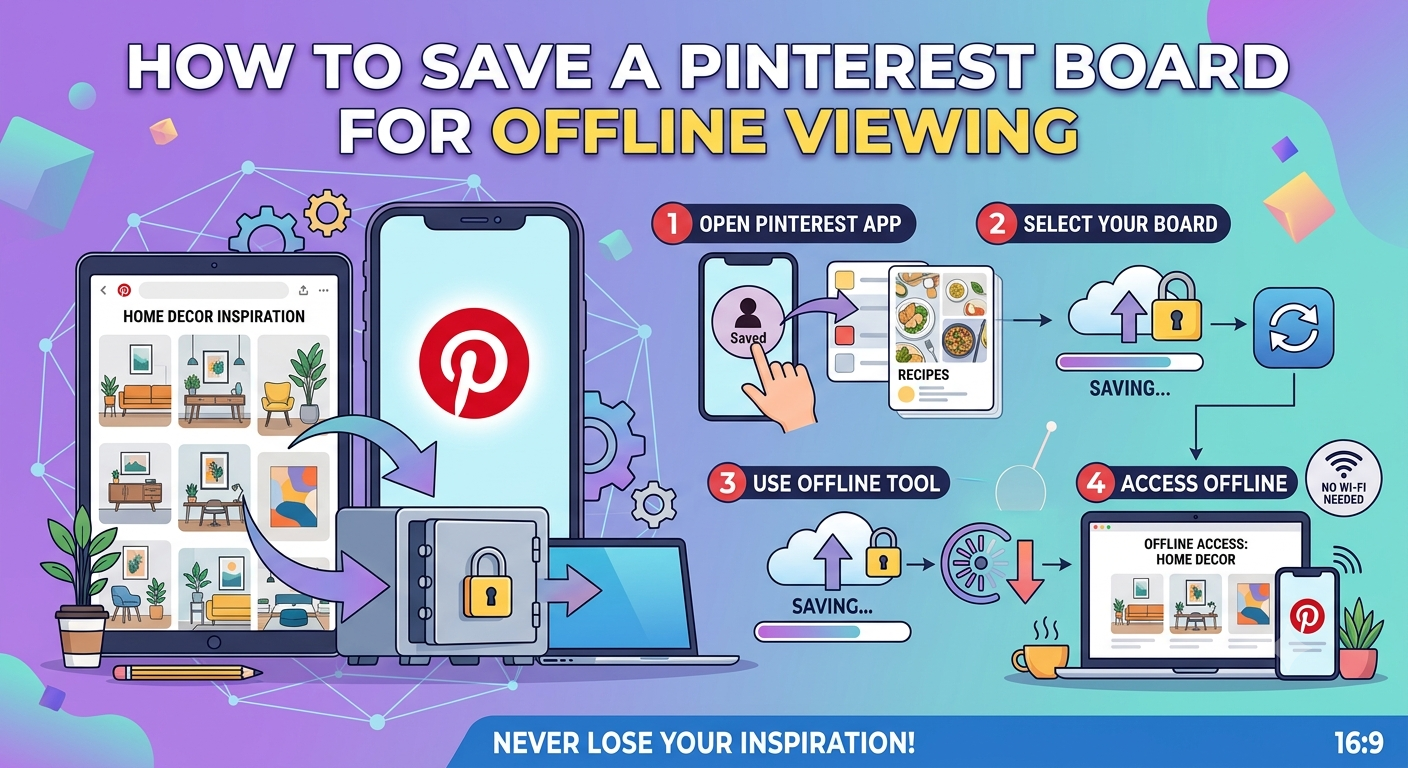
For your most important boards, pairing Pinterest's own organizational tools with an occasional downloaded backup (as covered in saving pins for offline access) gives you both a browsable, well-organized live version and an independent archive that doesn't depend on staying logged into Pinterest indefinitely.
Handling Boards With Hundreds of Existing, Unsorted Pins
Retroactively organizing a board that's already grown into an unsorted mess of hundreds of pins is a different challenge than organizing going forward. Rather than trying to sort everything in one sitting, breaking the task into smaller sessions sorting fifty pins into sections at a time makes the work manageable and avoids the common outcome of starting a big reorganization and abandoning it halfway through. Prioritizing your most-used or most-referenced boards for this treatment first, rather than trying to fix everything simultaneously, tends to produce more lasting results than attempting a single exhaustive pass across your entire account.
Organizing Saves Across Multiple Pinterest Accounts
Some users maintain separate Pinterest accounts for different purposes a personal account and a business account, for example. Cross-account organization isn't natively supported by Pinterest's boards and sections, since each account's boards exist independently. If you need to reference saves across both, the external index approach (a shared notes document linking to pins from both accounts) is more practical than trying to force Pinterest's own structure to bridge separate accounts.
Using Pinterest's Recommendation Algorithm to Your Advantage
Well-organized, topically consistent boards also tend to improve the relevance of Pinterest's own recommendations and related-pin suggestions, since the platform uses your existing board organization as a signal for what to show you next. A board mixing unrelated topics dilutes this signal, while a genuinely focused board tends to surface more relevant related content over time an organizing benefit that compounds beyond just making your own browsing easier.
Building the Habit, Not Just the Structure
Like most organizing systems, boards and sections only stay useful if applying them becomes part of the saving process itself, rather than a separate cleanup task you mean to get to eventually. Choosing the right board (and section, where relevant) at the moment you save a pin takes barely longer than saving without thinking about it, and is the difference between a Pinterest account that stays genuinely browsable for years and one that quietly becomes an unsorted archive within a few months.
A Simple Monthly Organization Routine
For most users, a lightweight recurring habit works better than an occasional big cleanup:
- Weekly: Save new pins directly into the right board and section rather than a general default board.
- Monthly: Spend ten minutes reviewing recently added pins and moving anything that landed in the wrong place.
- Quarterly: Audit your full board list for overlap, redundancy, or boards that have quietly become irrelevant, and merge or archive as needed.
This tiered approach keeps organization from becoming a single overwhelming task while still catching drift before it accumulates into a genuinely unmanageable backlog, and it scales naturally as your account grows rather than requiring a bigger and bigger cleanup effort each year.
Conclusion
Pinterest's own boards and sections cover essentially everything most users need to organize saves by topic, without requiring any third-party app or browser extension. Building deliberate board names, using sections for sub-topics, setting distinguishing covers, and periodically auditing for overlap turns Pinterest from a place where things get saved into a genuinely useful, searchable personal reference the key is applying the structure consistently at the moment of saving, not just setting it up once and hoping it holds, and tackling any existing backlog of unsorted pins gradually rather than all at once.