What Happens to Your Saved Content When You Delete an App
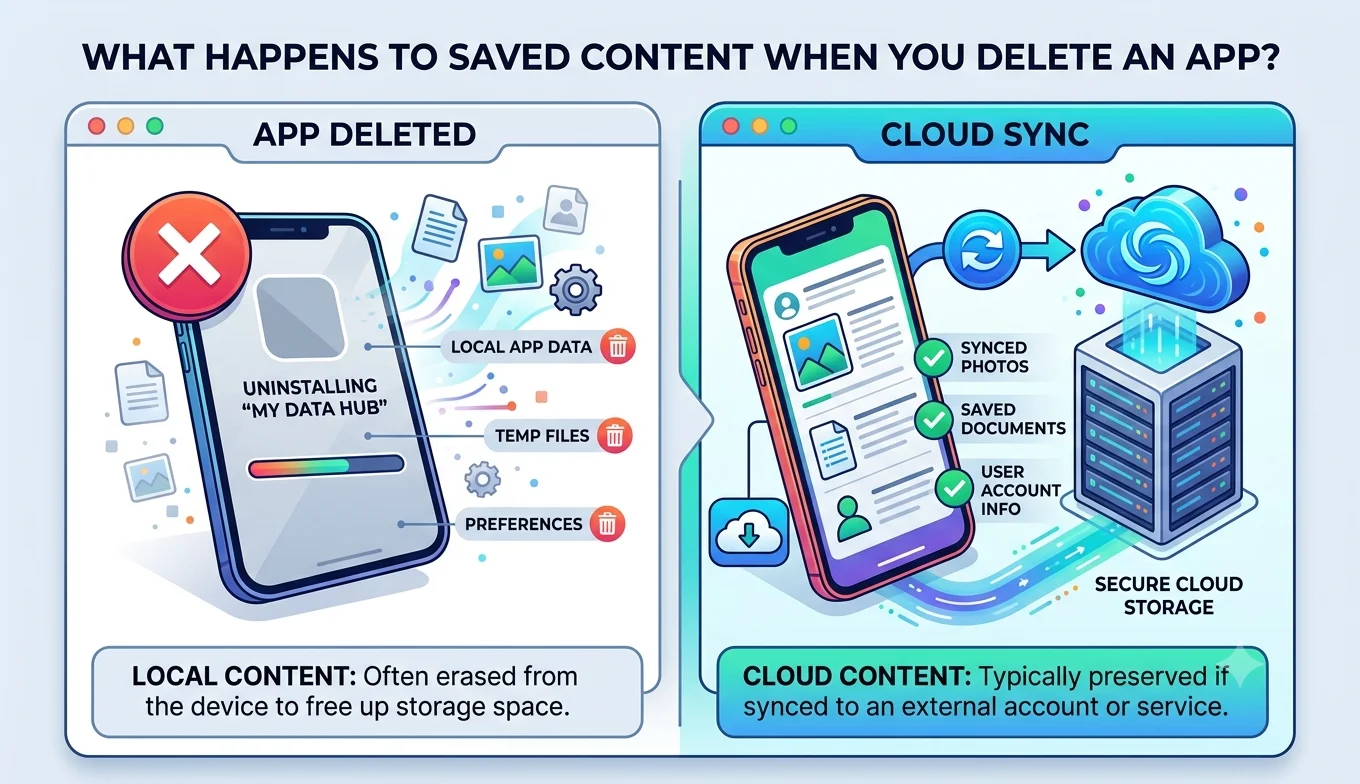
Deleting an app from your phone removes the app itself and any content stored only locally within that app's own storage but content backed up to the platform's cloud servers (like Instagram's Saved posts or Google Photos' library) remains intact and accessible once you reinstall the app or log in elsewhere, since that content lives on the company's servers, not just on your device.
The Key Distinction: Local Storage vs. Cloud Storage
Every app draws a line between what it stores directly on your Save From device and what it stores on its own remote servers, tied to your account. Deleting the app wipes the local portion instantly cached images, offline downloads, and any app-specific settings stored only on your phone. Anything synced to your account on the company's servers is unaffected by the app's removal, since that data doesn't live on your device in the first place; the app was simply your window into viewing it.
What Happens to Photos and Videos
- The Key Distinction: Local Storage vs. Cloud Storage
- What Happens to Photos and Videos
- What Happens to Saved Posts, Bookmarks, and Favorites
- What Happens to App-Specific Settings and Preferences
- What Happens to Messages and Direct Messages
- Why Backing Up Before Deleting an App Is Still a Good Habit
- A Pre-Deletion Checklist
- What Happens If You Delete the App AND the Account
- Reinstalling an App After Deletion
- How This Varies Across Different Types of Apps
- Checking Whether an App's Content Is Actually Cloud-Synced
- Does Deleting an App Free Up Storage Immediately?
- A Note on Shared or Family Devices
- Conclusion
- Content you uploaded to a cloud-backed service (Google Photos, iCloud Photos, Instagram posts, Facebook photos) stays safely on the company's servers and reappears once you reinstall the app and sign back in.
- Content you only downloaded locally (a saved TikTok video, a downloaded YouTube video, a photo you saved to your camera roll from Instagram) generally stays on your device's separate photo gallery or file system, independent of the app itself deleting Instagram, for example, doesn't delete photos you'd already saved to your camera roll, since those live in your device's own Photos app, not inside Instagram's app storage.
- Offline downloads stored specifically within an app's own storage (like a downloaded Netflix episode or a Spotify offline playlist) are typically deleted along with the app, since that content was never meant to exist outside the app's own managed storage space.
- Are Third-Party TikTok Downloader Apps Safe to Use
- How to Download Your Own Google Photos Album
- Comparing Google Photos vs iCloud for Backups
What Happens to Saved Posts, Bookmarks, and Favorites
Bookmarked or "saved" content within social apps Instagram Saved posts, TikTok Favorites, Facebook's Saved section is stored as account data on the company's servers, not as files on your device. Deleting the app doesn't delete this data; reinstalling the app and logging back into the same account restores full access to everything you'd previously saved, exactly as it was before you deleted the app.
What Happens to App-Specific Settings and Preferences
Local app settings display preferences, cached login sessions, downloaded offline maps or content are generally lost when you delete an app, since these live in the app's own local storage rather than synced to your account. Reinstalling the app typically means reconfiguring these preferences from scratch, even though your core account data (saved content, posts, messages) remains intact through your account login.
What Happens to Messages and Direct Messages
For most major messaging platforms, message history is stored on the company's servers and tied to your account, meaning deleting and reinstalling the app restores your full conversation history once you log back in. A notable exception involves apps using end-to-end encryption with device-specific keys in some configurations, encrypted message history tied to a specific device's local encryption key can become permanently inaccessible if the app is deleted and the key isn't backed up separately, which is why encrypted messaging apps often specifically prompt you to back up chat history through their own dedicated backup feature before uninstalling.
Why Backing Up Before Deleting an App Is Still a Good Habit
Even though most cloud-synced content survives an app deletion, backing up beforehand protects against a few realistic scenarios:
- Account access issues, if you ever lose access to the account itself (forgotten password, account compromise, permanent suspension), cloud-stored content becomes inaccessible regardless of whether the app is still installed.
- Encrypted or device-specific data, as noted above, some content tied to device-specific encryption keys doesn't survive an app deletion the way regular cloud-synced content does.
- Platform policy changes, companies occasionally change data retention policies, and having an independent backup means you're not solely dependent on a platform's current policy staying the same indefinitely.
A Pre-Deletion Checklist
Before deleting any app you've used regularly, it's worth running through:
- Check for locally-stored offline content (downloaded videos, offline playlists, offline maps) that would be lost, and decide whether you need it elsewhere first.
- Run a full data export if the app offers one (Google Takeout, Instagram's Download Your Information, Facebook's equivalent) for a genuine independent backup of your account data.
- Confirm your login credentials are saved somewhere secure, in case you want to reinstall and log back in later losing access to the account itself would make even cloud-synced content unreachable.
- Back up encrypted or device-specific content specifically, using whatever dedicated backup feature the app provides, since this category doesn't automatically transfer to the cloud like regular synced content does.
- Best Practices for Backing Up Facebook Memories
- Facebook Save Option Not Showing Up
- Facebook Data Download Tool
- How to Download Your Own Google Photos Album
What Happens If You Delete the App AND the Account
Deleting an app only removes the local installation your account and its associated cloud data remain untouched unless you separately go through the platform's account deletion process. Deleting the account itself is a different, generally more serious action that typically does permanently remove your cloud-stored data after a grace period, which is why platforms usually require a separate, more deliberate confirmation step for account deletion compared to simply uninstalling the app.
Reinstalling an App After Deletion
In most cases, reinstalling an app and logging back into the same account restores full access to your cloud-synced content exactly as it was saved posts, photos, messages, and settings tied to your account all reappear. The main things that typically don't automatically restore are locally-stored offline content and certain device-specific settings, which you'd need to reconfigure or re-download after reinstalling.
How This Varies Across Different Types of Apps
Not every app follows exactly the same pattern, and it's worth understanding a few common categories:
- Social media apps (Instagram, Facebook, TikTok) generally store almost everything meaningful posts, saves, messages on their servers, making them among the safest apps to delete and reinstall without losing account data.
- Cloud storage and photo apps (Google Photos, iCloud, Dropbox) are built specifically around cloud sync as their core function, so deleting the app has essentially no effect on the underlying stored content.
- Streaming and media apps (Spotify, Netflix, YouTube) typically keep your account data (playlists, watch history, subscriptions) on their servers, while offline downloads for that specific app are stored locally and lost on deletion.
- Utility and productivity apps (note-taking, task managers) vary more widely — some sync everything to an account by default, while others store data purely locally unless you've specifically enabled a cloud backup feature, making it worth checking each app's specific settings rather than assuming a universal rule applies.
Checking Whether an App's Content Is Actually Cloud-Synced
If you're unsure whether a specific app's content will survive deletion, a reliable way to check is looking at whether the app required you to create an account or log in at all. Apps with no login requirement generally store everything locally, meaning deletion removes that data with no recovery path. Apps requiring an account login typically sync at least some core data to that account, though the exact scope (does it include downloaded offline content, or just core account data) can vary and is worth confirming in the app's own settings or help documentation before assuming everything is safely backed up.
Does Deleting an App Free Up Storage Immediately?
Yes removing an app reclaims the storage space used by both the app itself and its local data cache right away, which is often the main reason people delete apps in the first place (freeing up device storage rather than any concern about the account data itself). This immediate storage benefit is independent of whatever happens to your account's cloud-stored content, which continues taking up space on the company's servers rather than your device either way.
A Note on Shared or Family Devices
If you're deleting an app from a shared or family device, it's worth confirming which account was actually logged in before deleting, particularly if multiple people use the same device with different logins at different times. Deleting the app removes the local session for whichever account was active, but doesn't affect any other account's cloud-stored data the distinction between local and cloud storage applies per-account, not just per-device.
Conclusion
Deleting an app is generally safer for your data than it might feel in the moment most of what matters (photos, saved posts, messages) lives on the company's servers tied to your account, not just on your device, and survives being reinstalled later. The real risk sits with locally-stored offline content and device-specific encrypted data, which is exactly why running a proper backup or export before deleting any app you've used seriously is worth the few extra minutes, even when the app itself seems safe to remove.